Signing In
Once you have successfully created an account, you can sign in to the HIEV Canada mobile application using either your registered mobile number or your Google account.
Option 1: Sign In with Mobile Number
This method uses a One-Time Password (OTP) to securely authenticate your account.
-
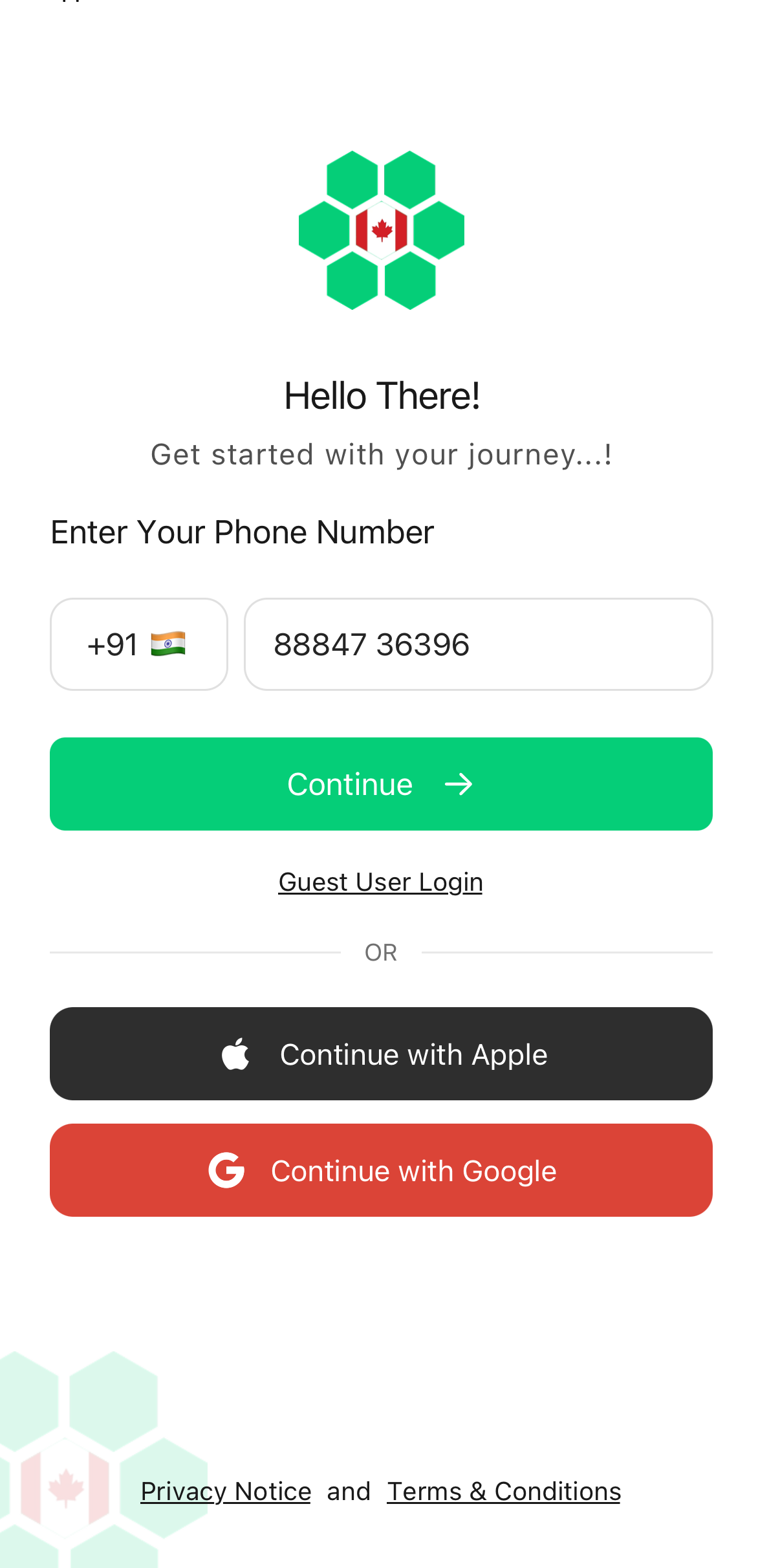
Enter your registered Mobile Number into the designated input field and proceed.
-
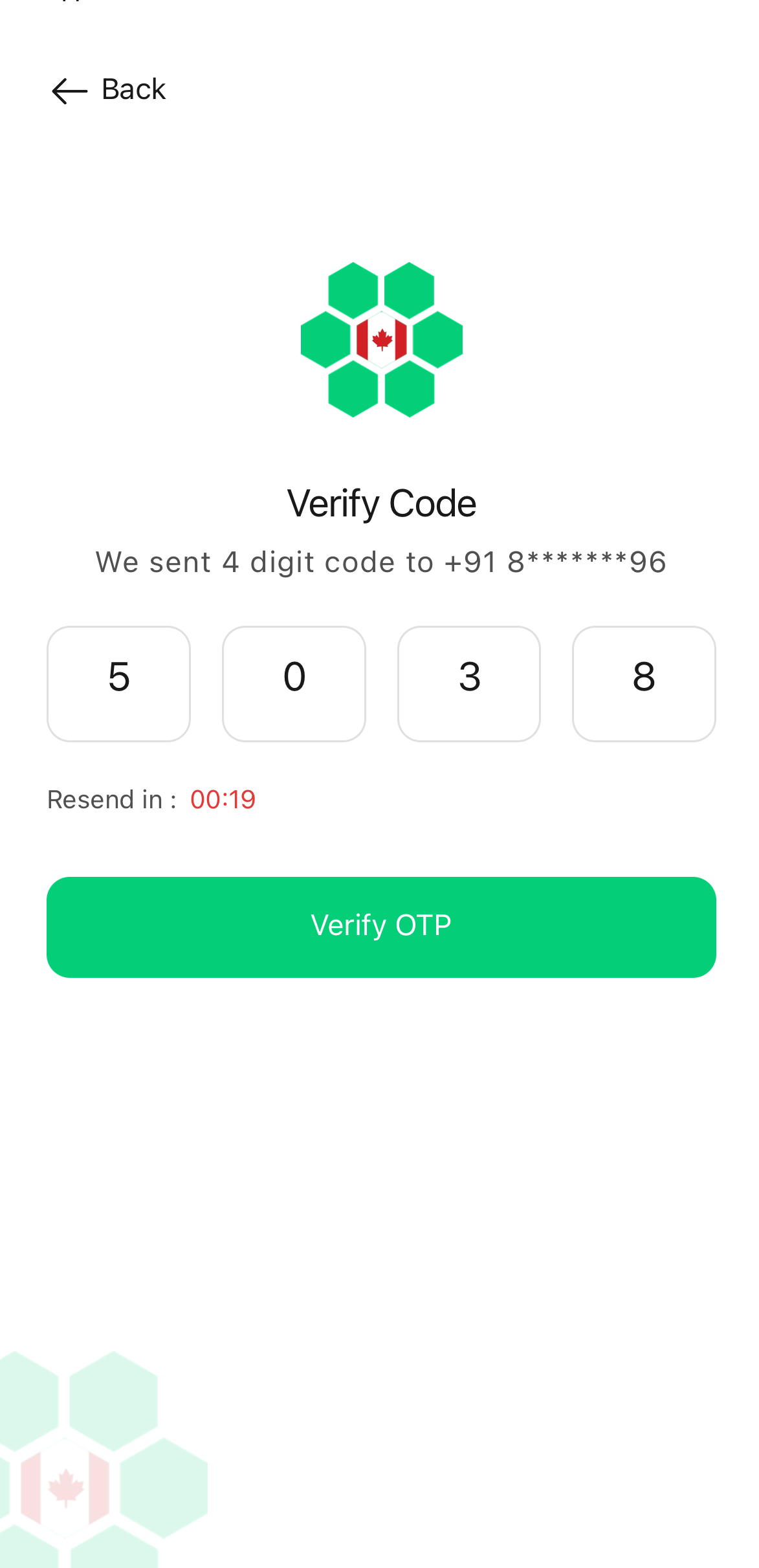
A verification code (OTP) will be sent to your device via SMS. Enter the OTP on the verification screen and tap Verify OTP.
-
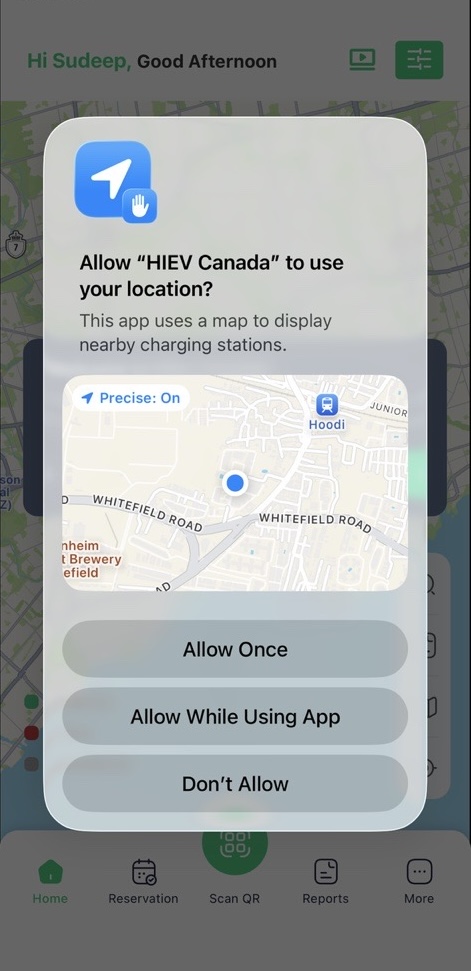
Location Access: Upon successful verification, the application will ask for permission to access your device's location. Allowing this is recommended so the app can locate nearby charging stations.
-
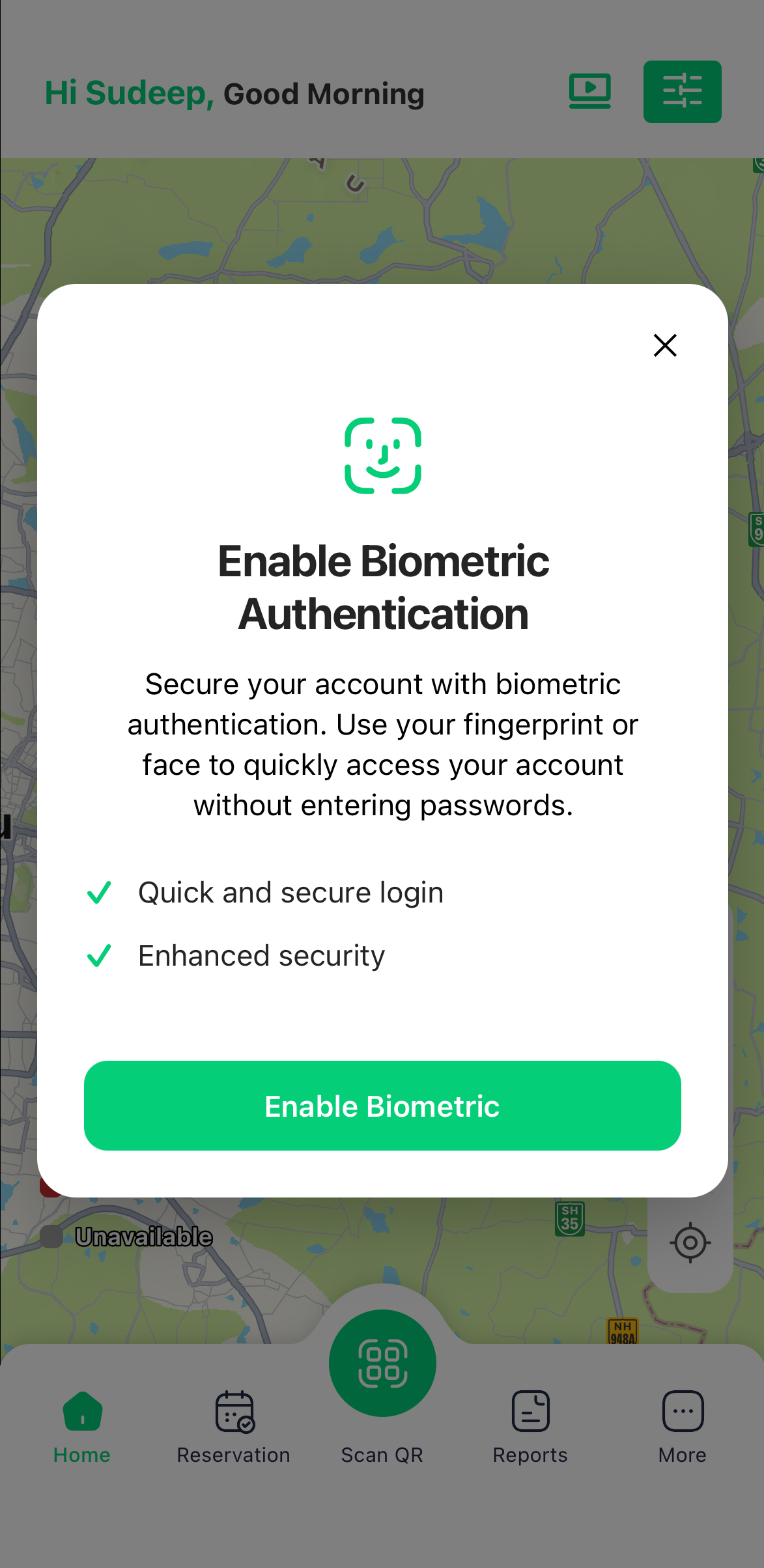
Biometric Authentication: The app will prompt you to Enable Biometric Authentication (Fingerprint / Face ID) for faster future logins. You can tap Enable to turn it on, or tap Cancel to skip this step.
-
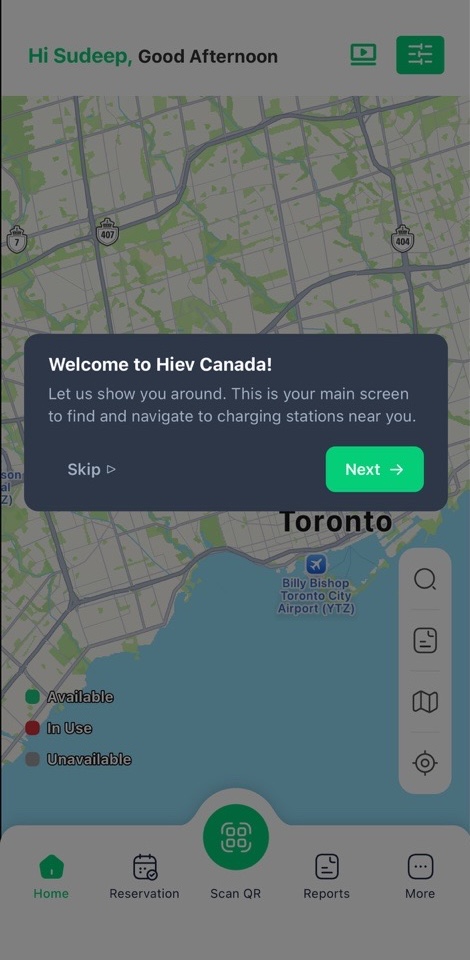
App Tour: Next, you will see a brief introduction to the app's features.
-
Tap Next to read through the explanation screens.
-
Tap Skip Tour if you wish to bypass this introduction.
-
-
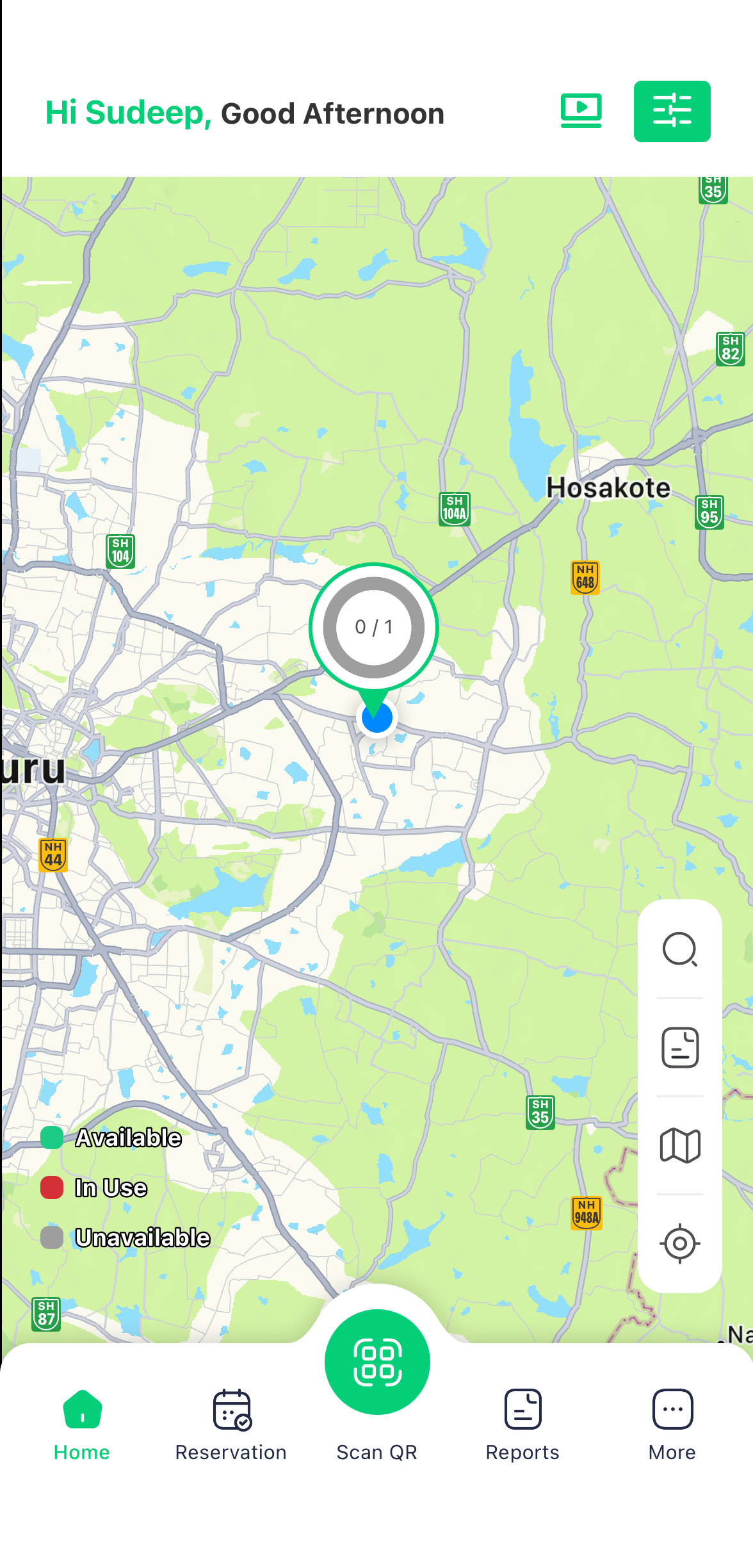
After completing or skipping the tour, you will be successfully logged in and directed to the main page.
Option 2: Sign In with Apple ID
For a faster, seamless login experience, you can authenticate using your linked Google account.
-
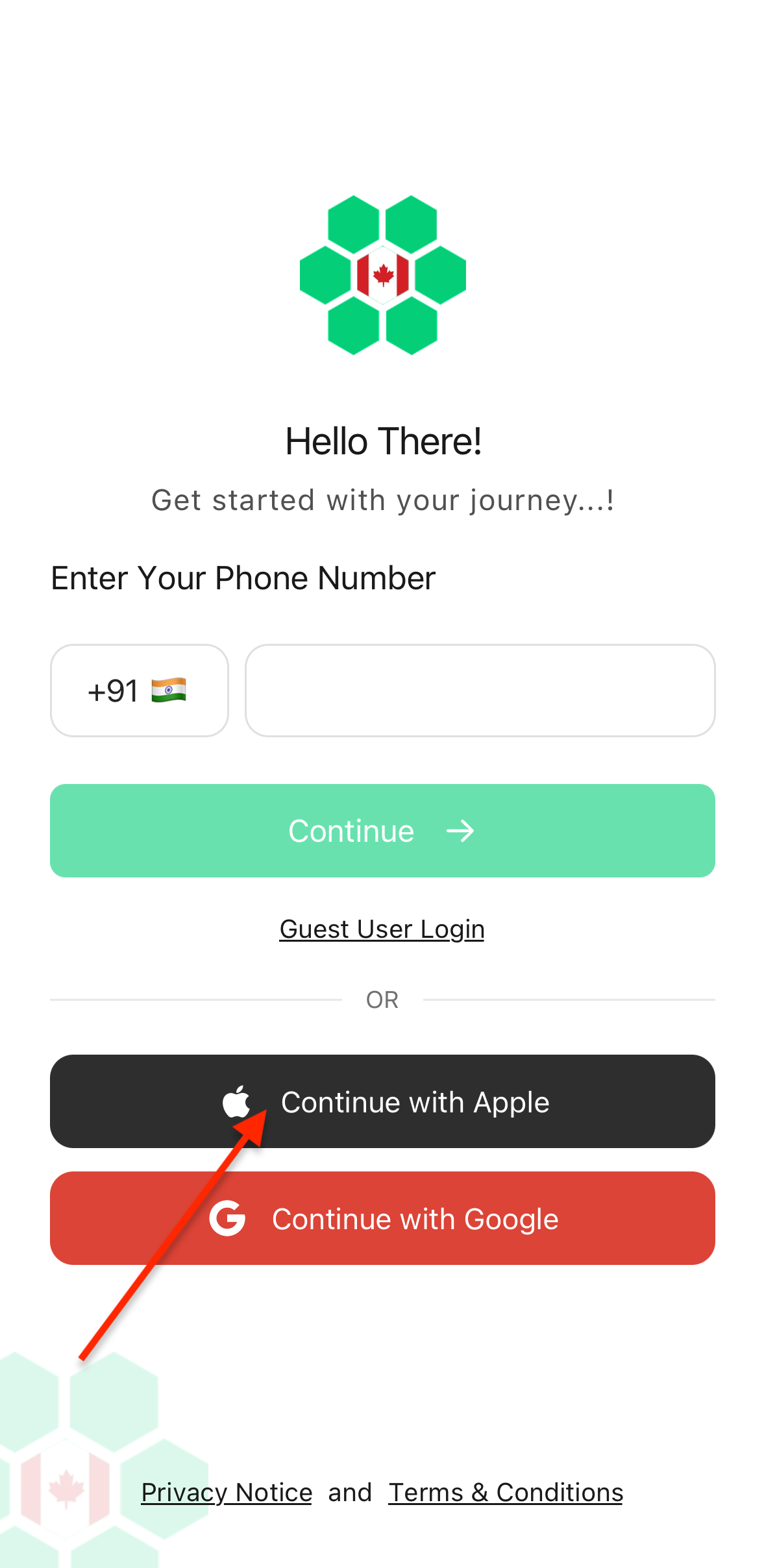
Tap the Apple icon (or "Continue with Apple") in the alternative sign-in section.
-
A prompt will appear asking you to select your Apple account.
-
Select your Apple account to authenticate automatically.
-
Location Access: Upon successful authentication, the application will ask for permission to access your device's location. Allowing this is recommended so the app can locate nearby charging stations.
-
Biometric Authentication: The app will prompt you to Enable Biometric Authentication (Fingerprint / Face ID) for faster future logins. You can tap Enable to turn it on, or tap Cancel to skip this step.
-
App Tour: Next, you will see a brief introduction to the app's features.
-
Tap Next to read through the explanation screens.
-
Tap Skip Tour if you wish to bypass this introduction.
-
-
After completing or skipping the tour, you will be directed straight to the main page.
Signing in with a social account like Google bypasses the OTP verification step, but still provides the initial location setup and app tour to ensure you are ready to use the application.