Chat With Customer Support
The HIEV Canada mobile app allows you to interact directly with customer support through a real-time chat interface and review past chat history transcripts whenever needed.
Starting a Support Chat
-
Sign in to your HIEV Canada account.
-
Tap on the More icon in the bottom menu.
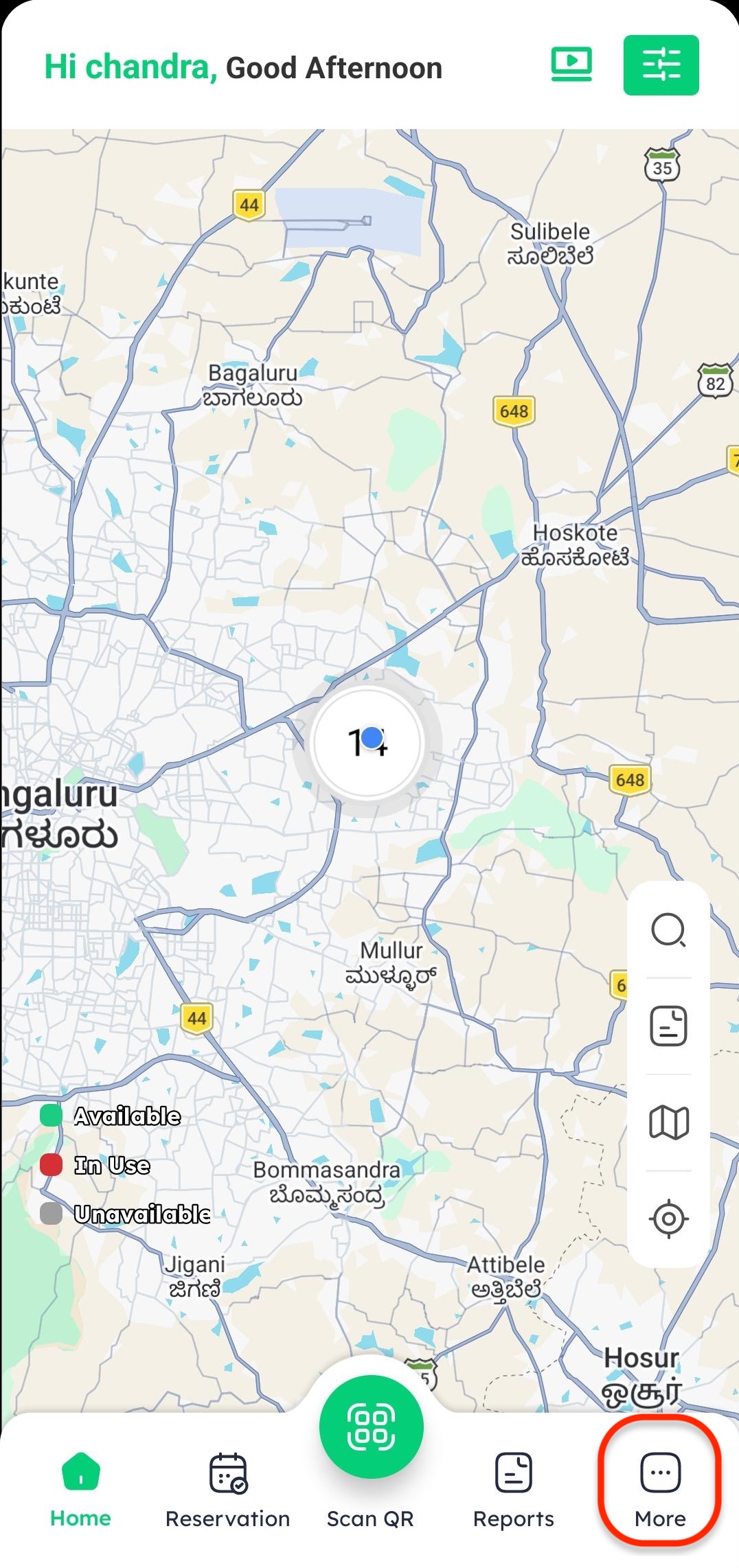
-
Tap on Support from the list of options.
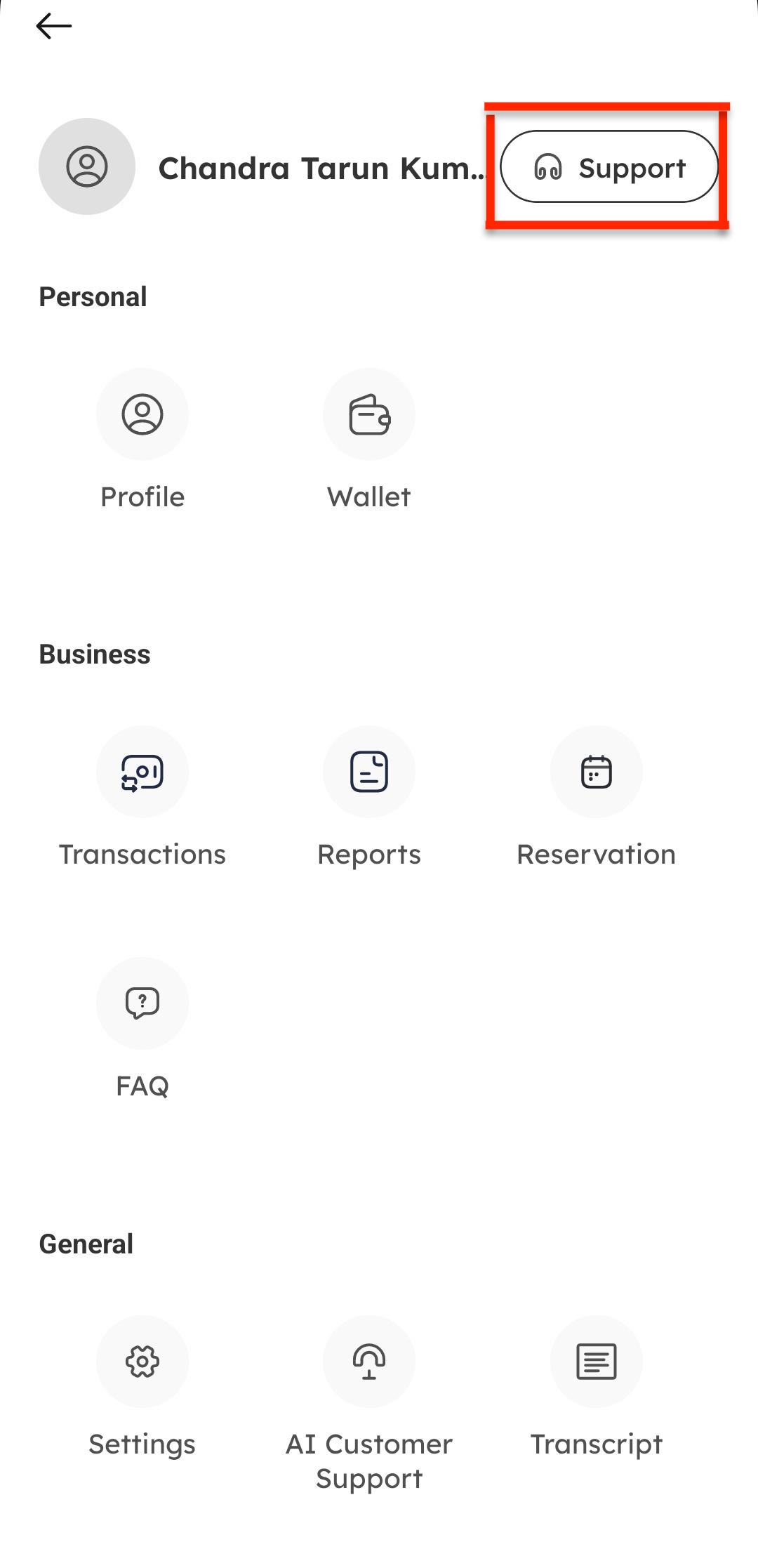
-
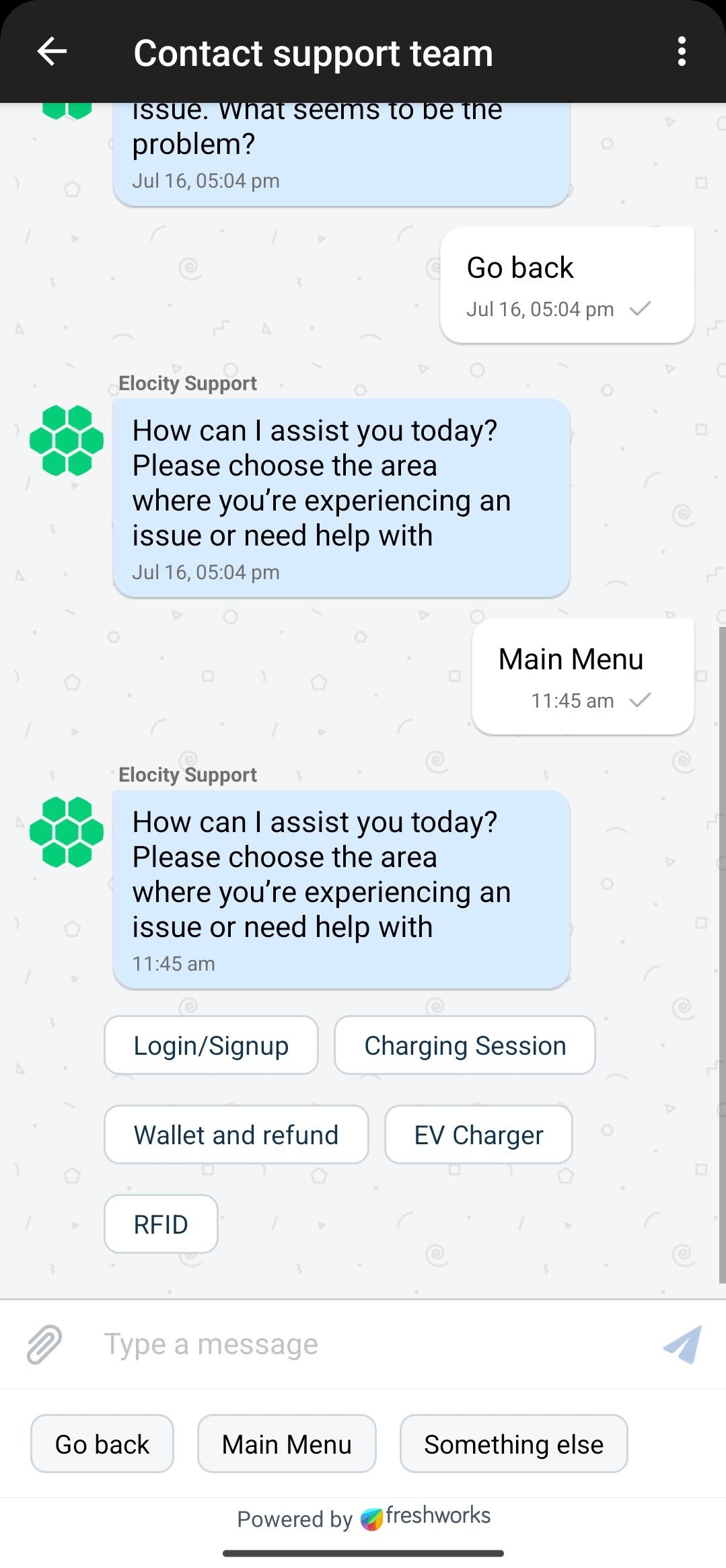
Tap on the Chat icon to open the support chat window.
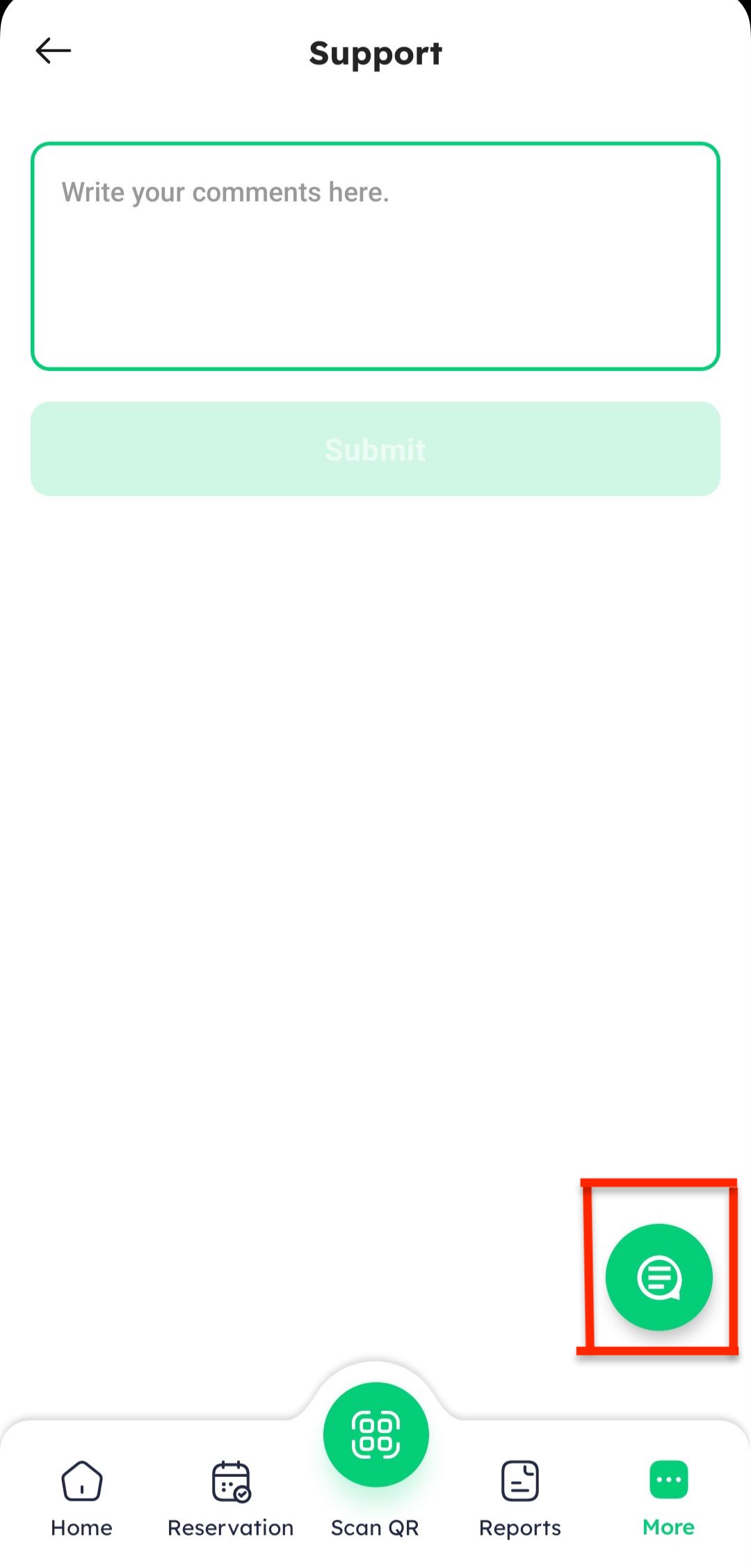
-
Select or open a customer chat conversation from the list.
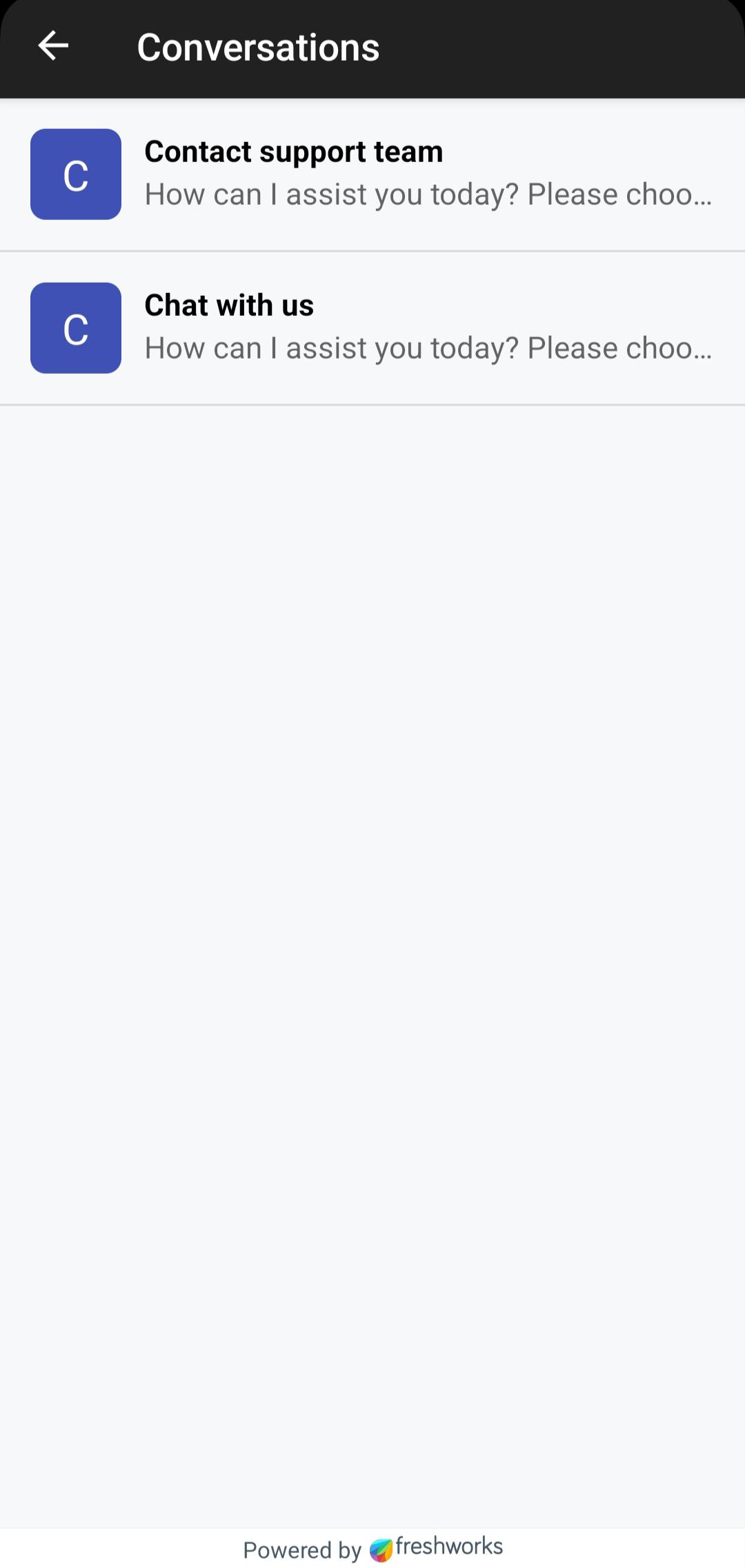
-
Select any prompt or type your query in the message field to begin chatting with customer support.
Viewing Chat Transcripts
To review all your previous chat conversations in one place:
-
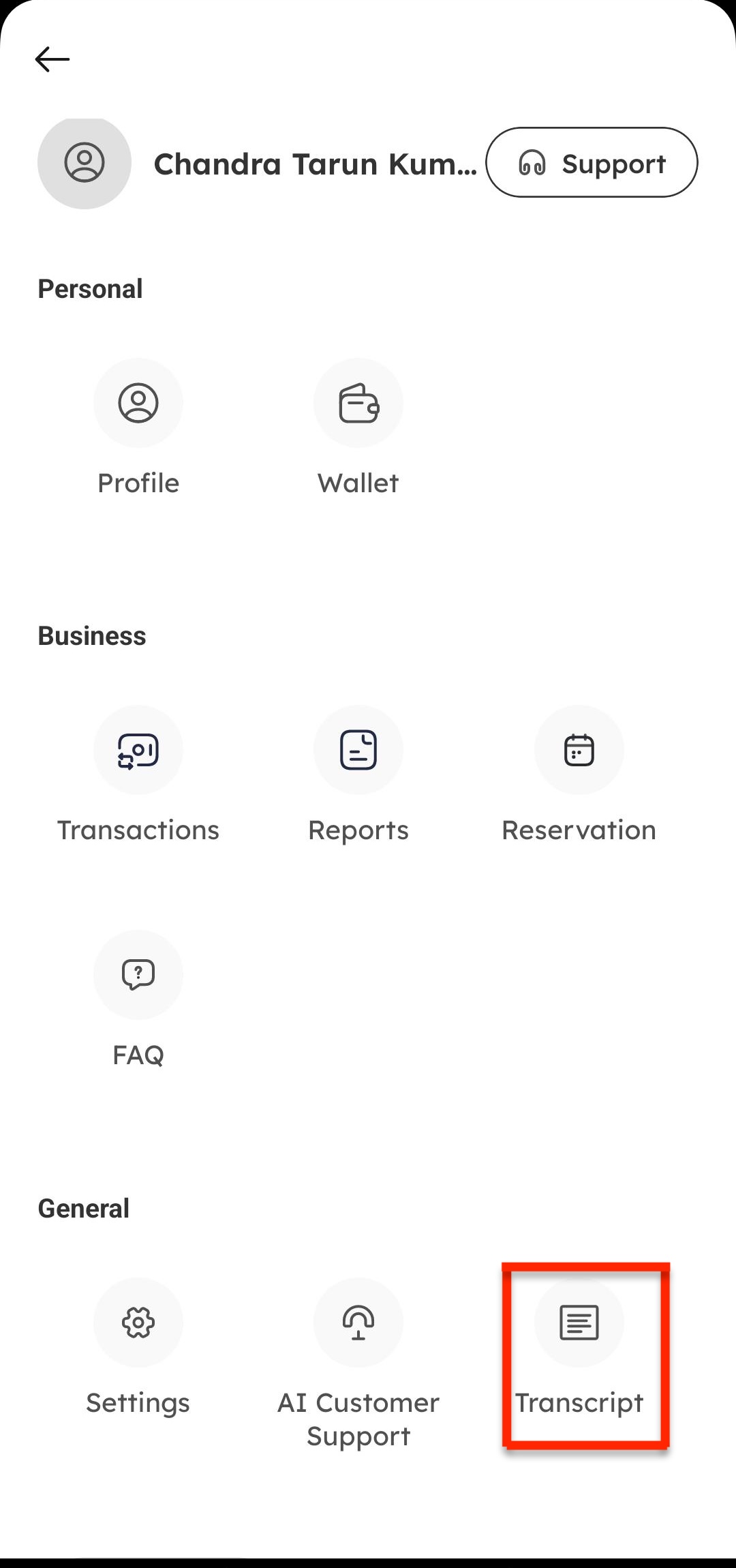
Tap on Support from the menu options.
-
Tap on the Transcript option within Support.
-
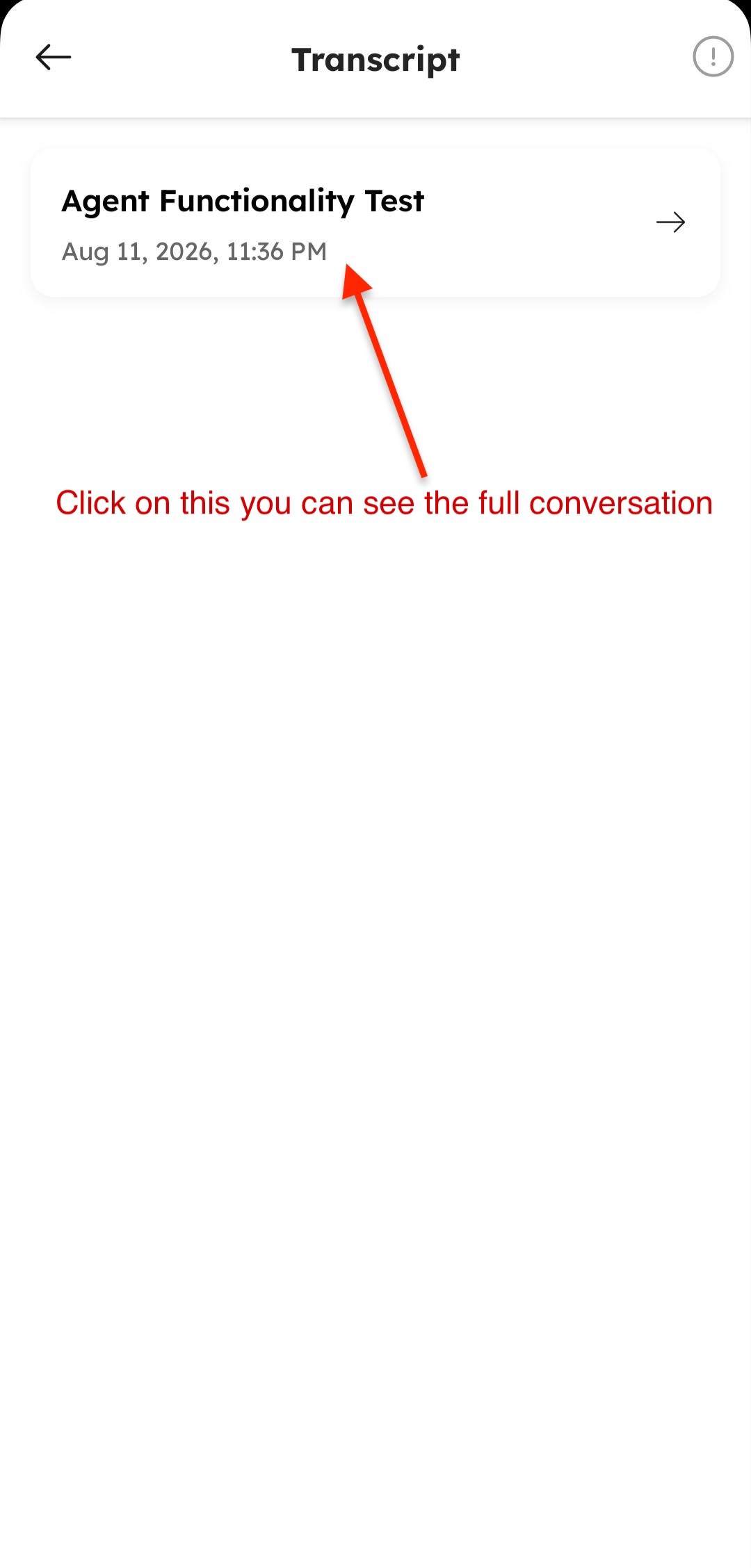
View your complete conversation history, which includes:
-
Customer Support Chats: Review all text conversations between you and the customer support team.

-
AI Voice Interactions: Access and review past voice conversation transcripts with the AI customer support agent.
-