Managing Reservations
The HIEV Canada mobile app allows you to reserve a charging station connector ahead of time, manage your upcoming bookings, view your historical reservations, or cancel active bookings when your plans change.
How to Access Reservations
You can access the Reservations screen using either of the following two methods:
Method 1: Direct Access from Home Screen
-
Sign in to your HIEV Canada account.
-
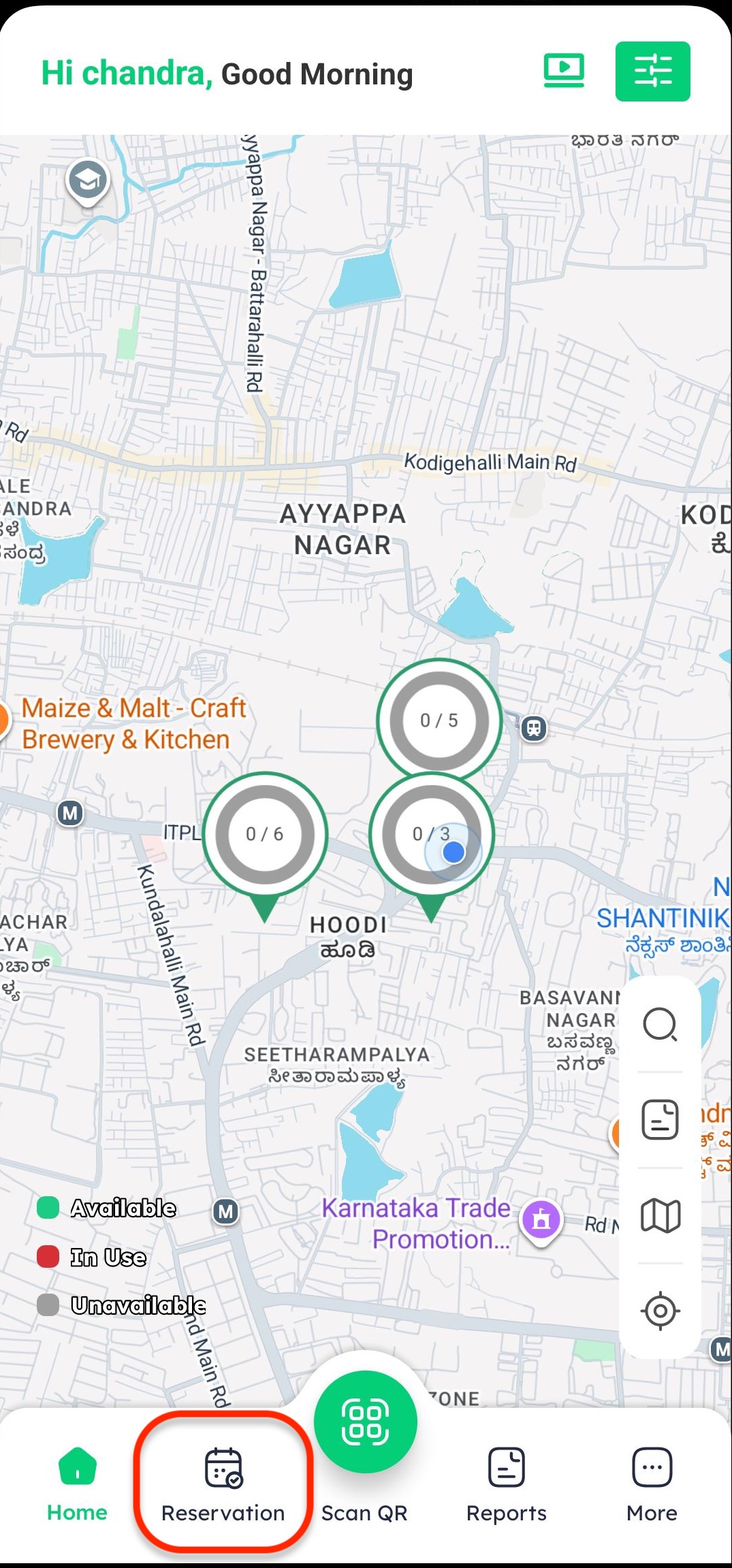
Tap on the Reservation button directly on the main Home screen.
Method 2: Access via More Menu
-
Sign in to your HIEV Canada account.
-
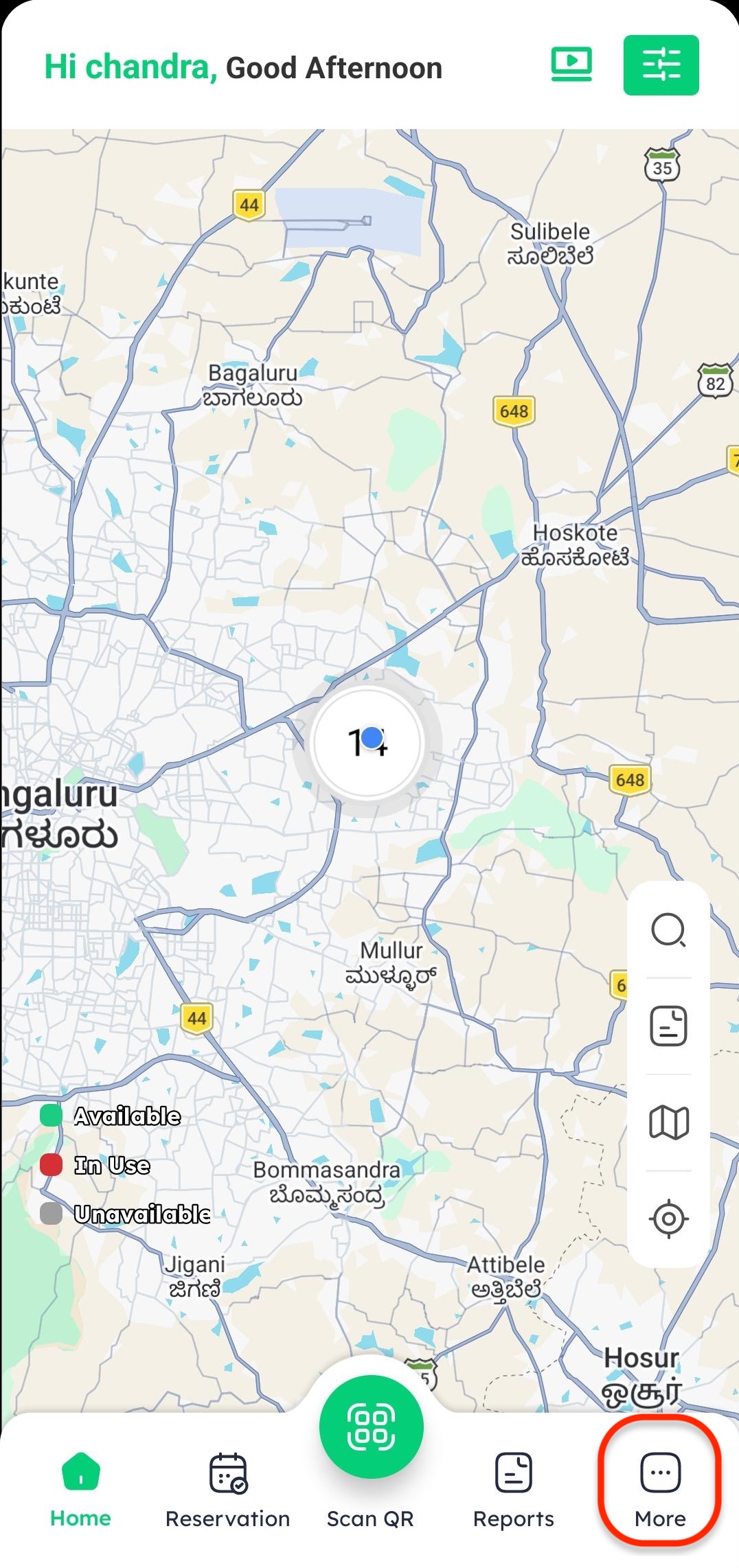
Tap on the More icon in the bottom menu.
-
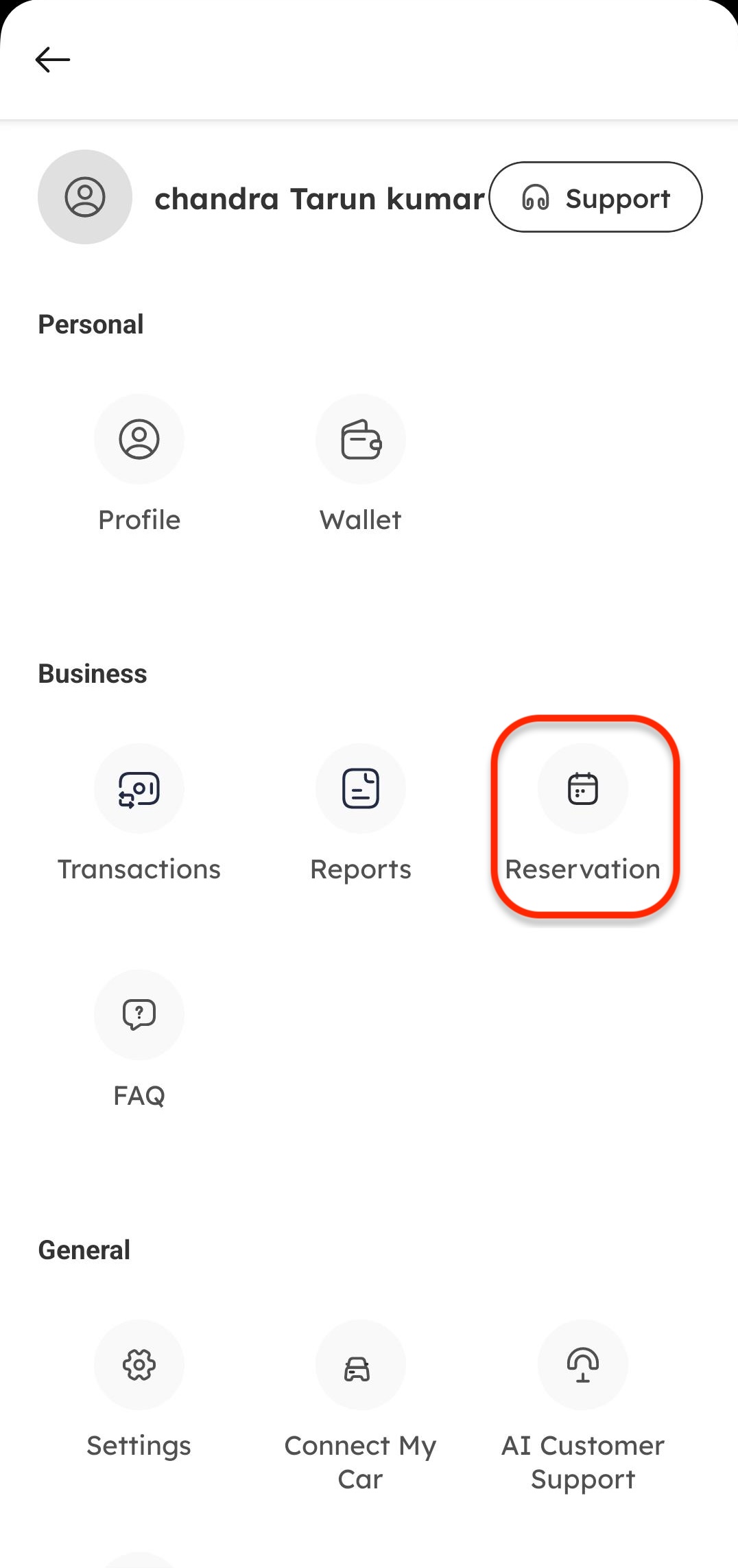
Tap on Reservations from the list of options.
Reserving a Charging Station
To book a connector at a charging station in advance:
-
Tap on your desired charging location card from the home screen or map.
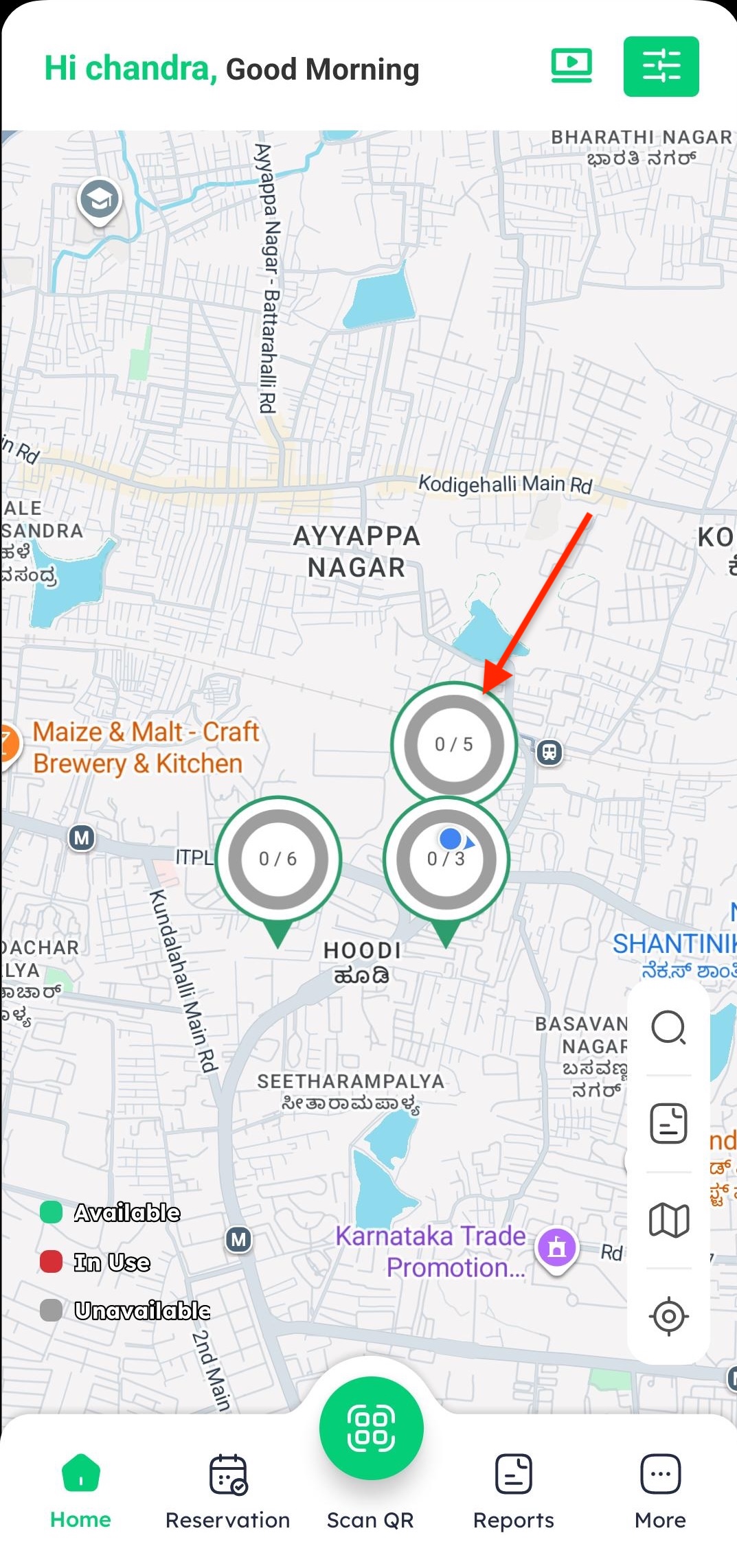
-
Tap on the Reserve icon on the location overview screen.
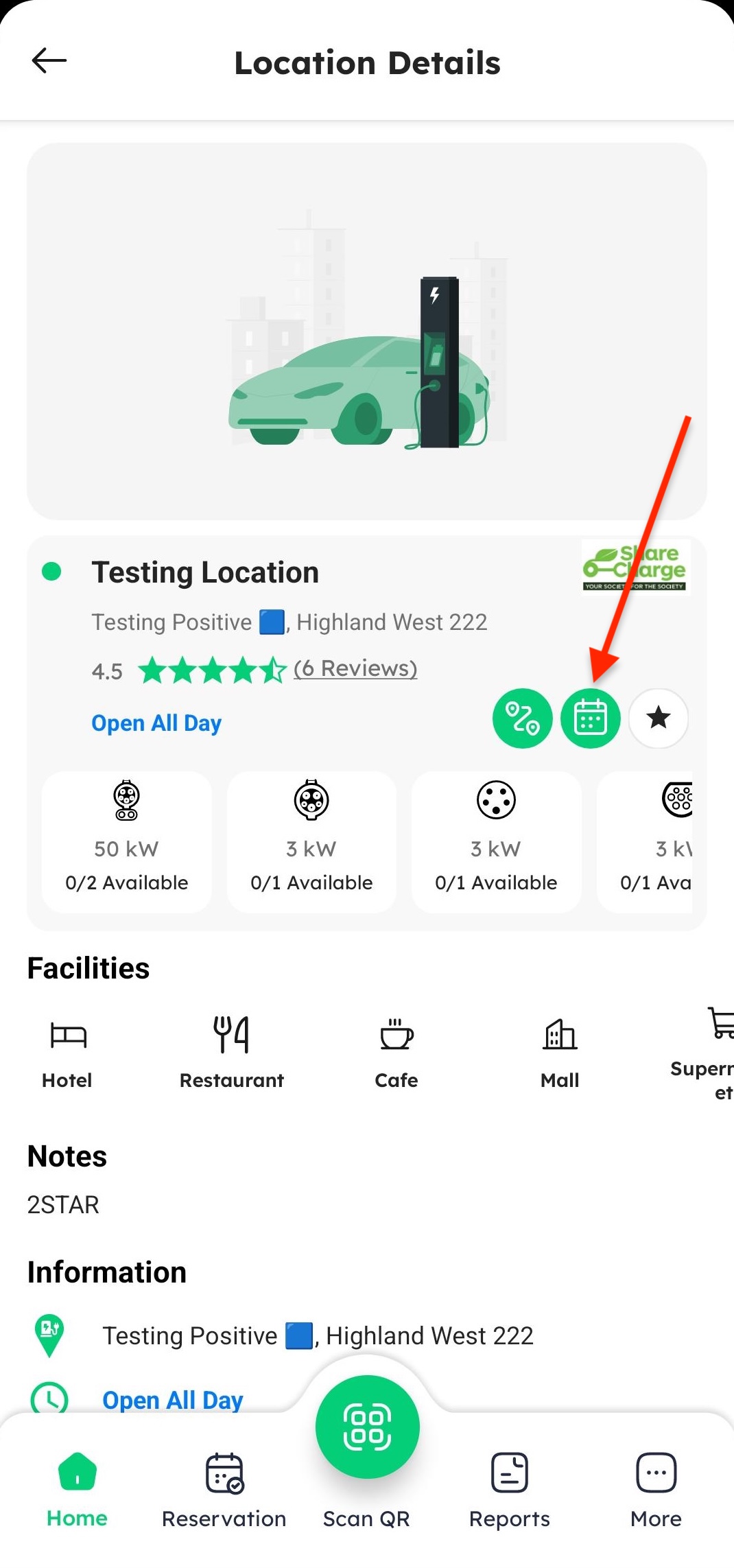
-
Tap on the Connector button to open available chargers.
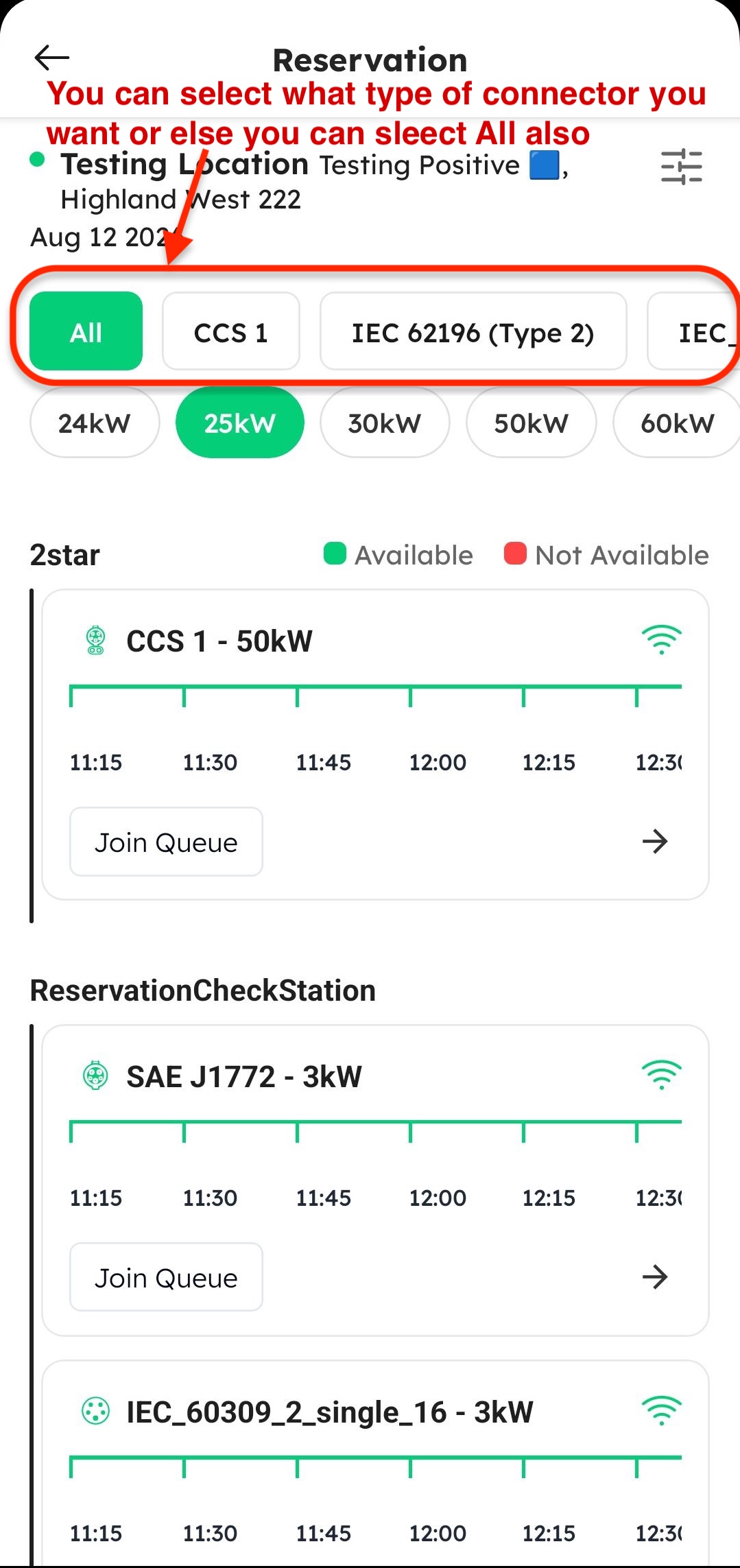
-
Select your required charging station connector from the list.
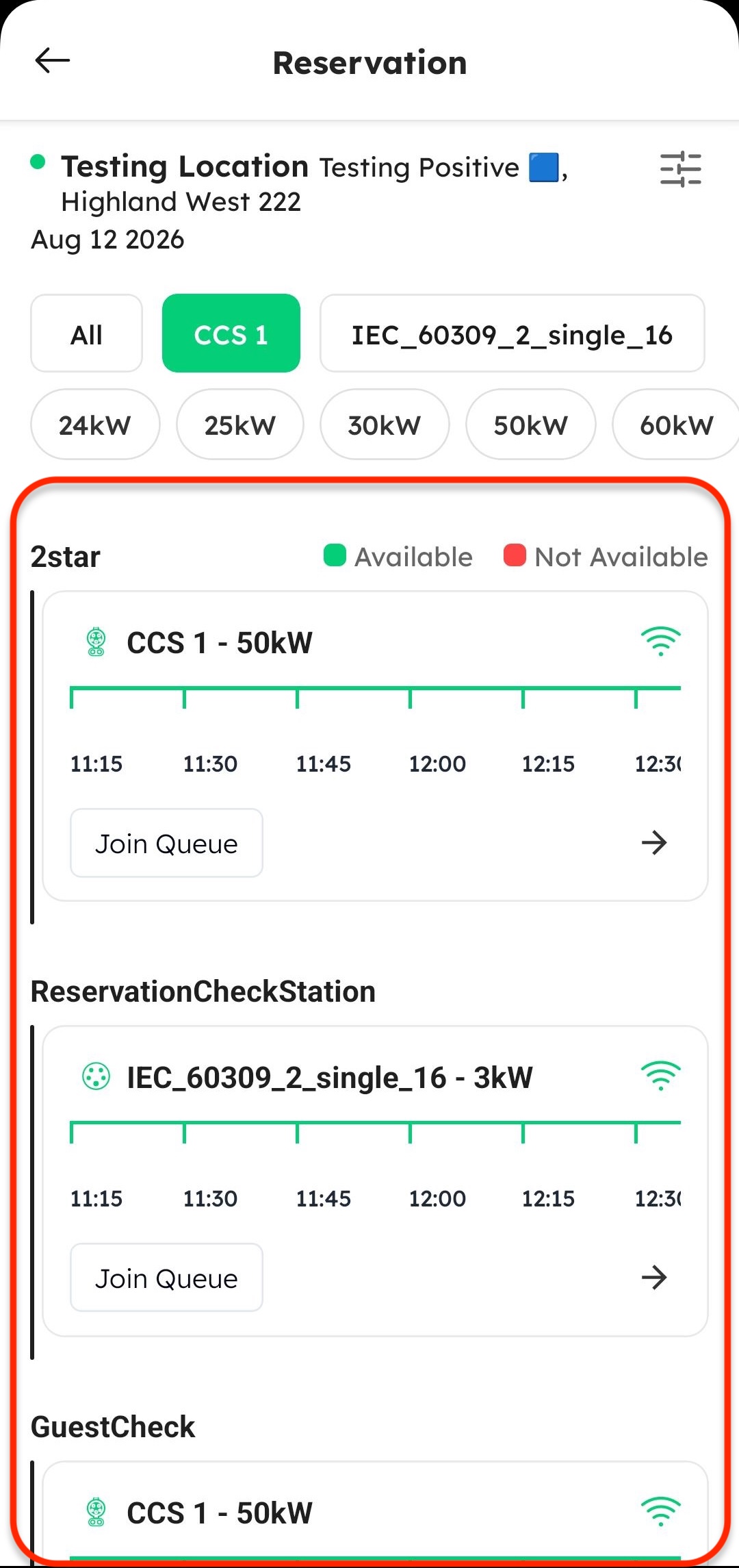
-
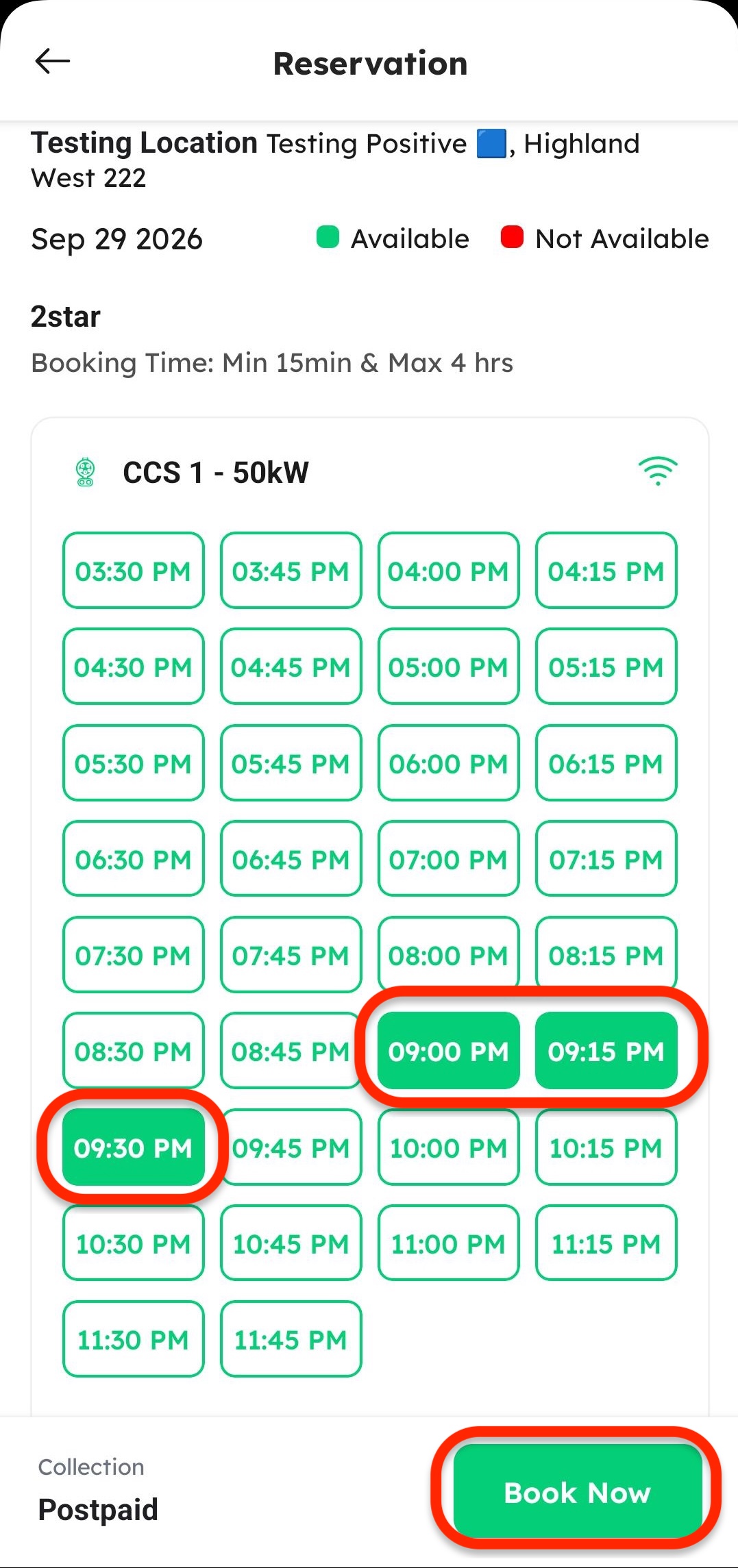
Choose your preferred time duration for the reservation window and click Book Now.
-
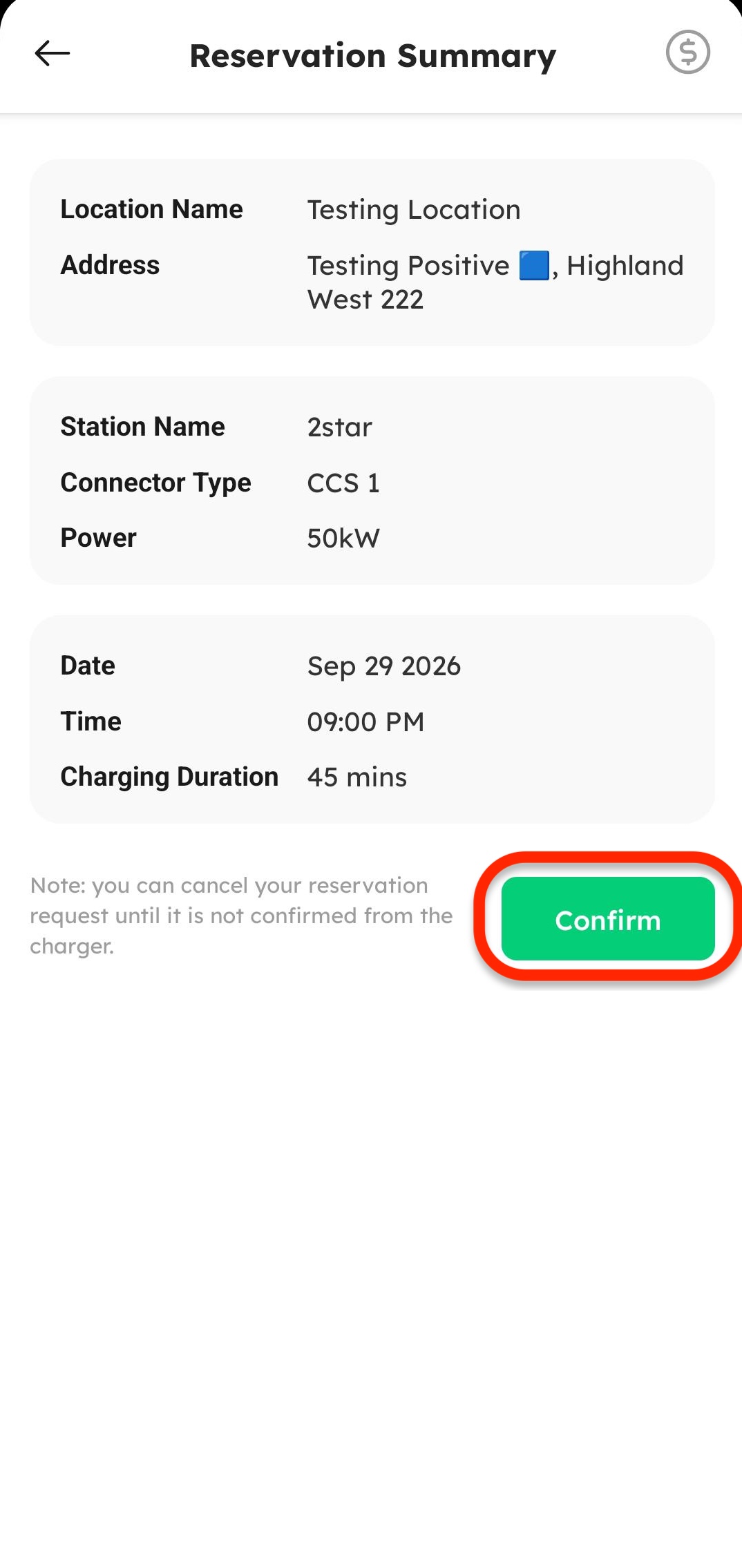
Review your reservation summary details and tap Confirm.
-
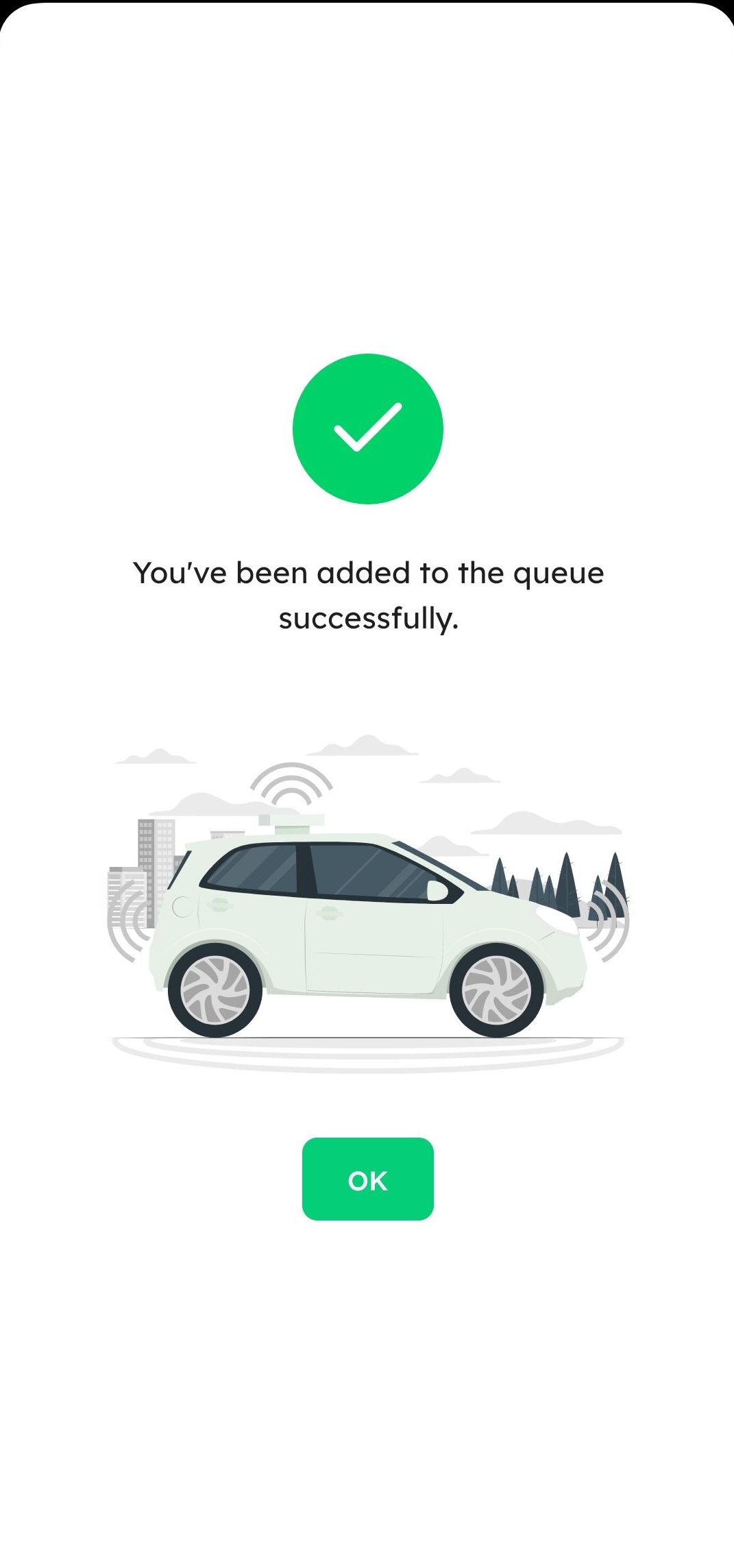
Upon successful confirmation, your booking will instantly appear under the Upcoming tab.
Viewing Upcoming Reservations
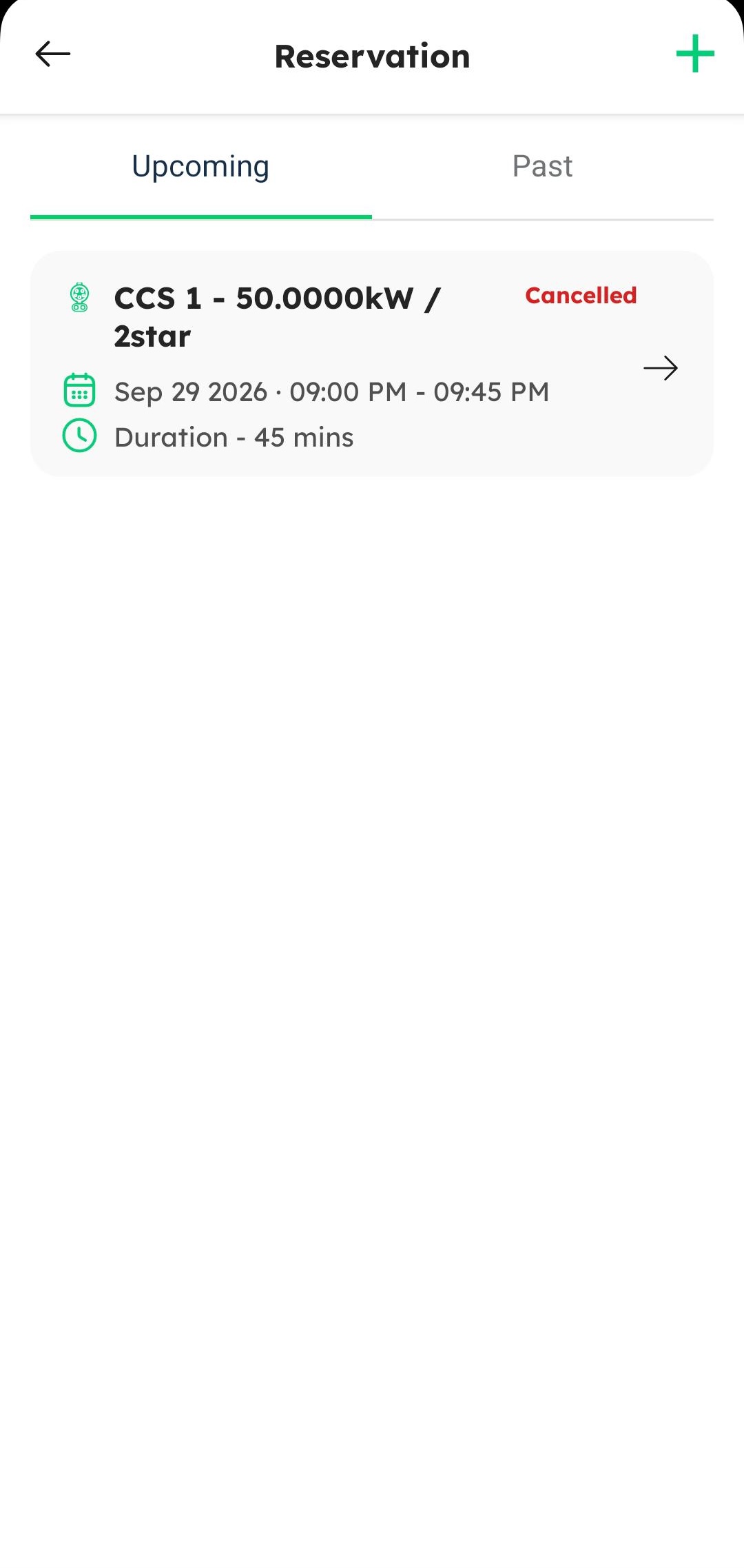
The UPCOMING tab displays all active and future scheduled reservations.
-
Access the Reservations screen (via Home shortcut or More menu).
-
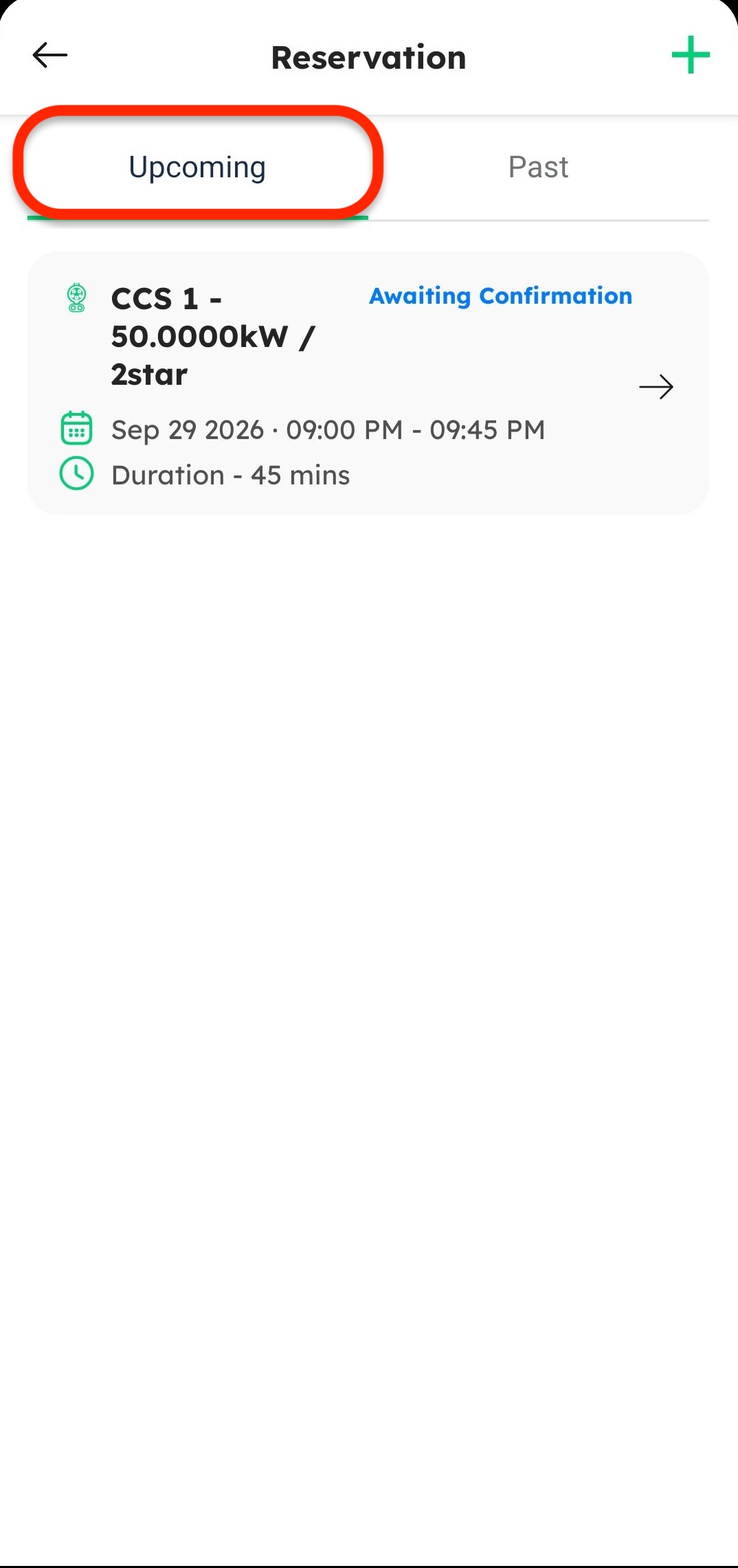
Tap on the UPCOMING tab at the top.
-
On this screen, you can:
- View the reserved station name and connector details.
- View the scheduled date, start time, and reservation duration.
- Tap on any reservation card to view its full details or cancel it.
Viewing Past Reservations
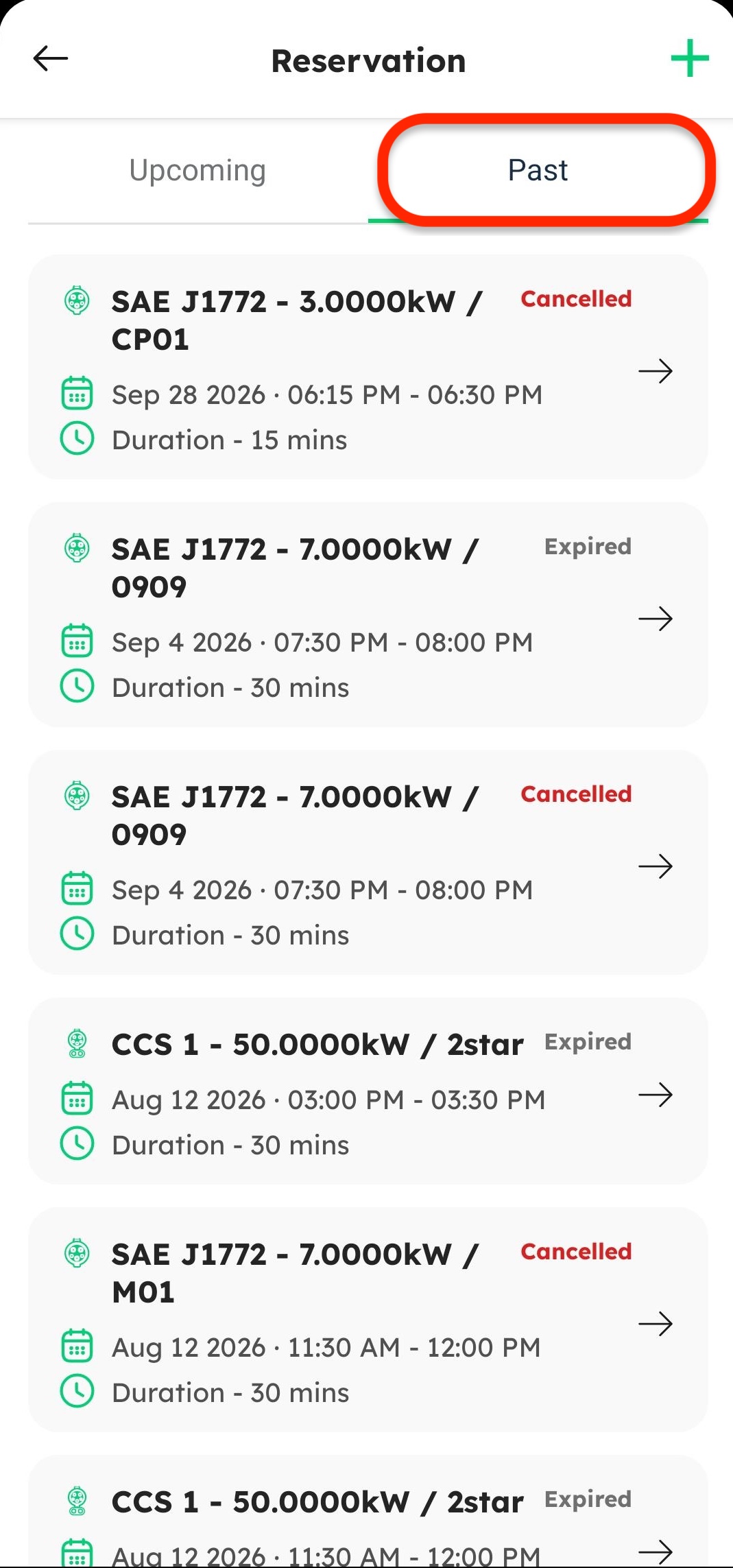
The PAST tab maintains a complete record of all your historical bookings.
-
Access the Reservations screen.
-
Tap on the PAST tab at the top.
-
On this screen, you can review:
- Completed Sessions: Reservations that were successfully used for charging.
- Expired Reservations: Scheduled bookings where charging was not initiated during the reserved time.
- Cancelled Reservations: Scheduled bookings that were cancelled prior to the charging start time.
Canceling an Upcoming Reservation
If you need to cancel a scheduled reservation:
-
Navigate to the Reservations screen and select the UPCOMING tab.
-
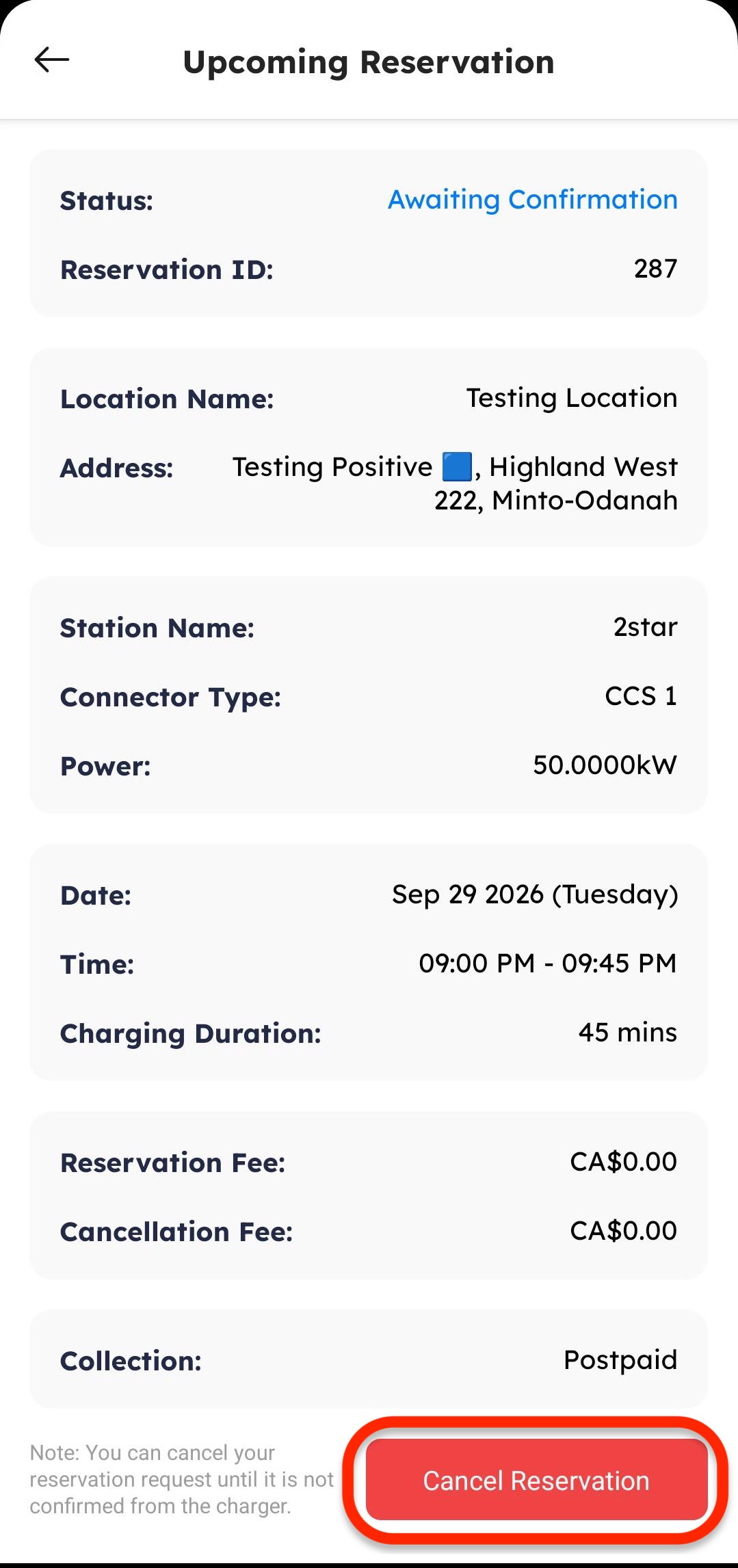
Tap on the specific active reservation card you wish to cancel.
-
On the reservation details page, tap Cancel Reservation at the bottom.
-
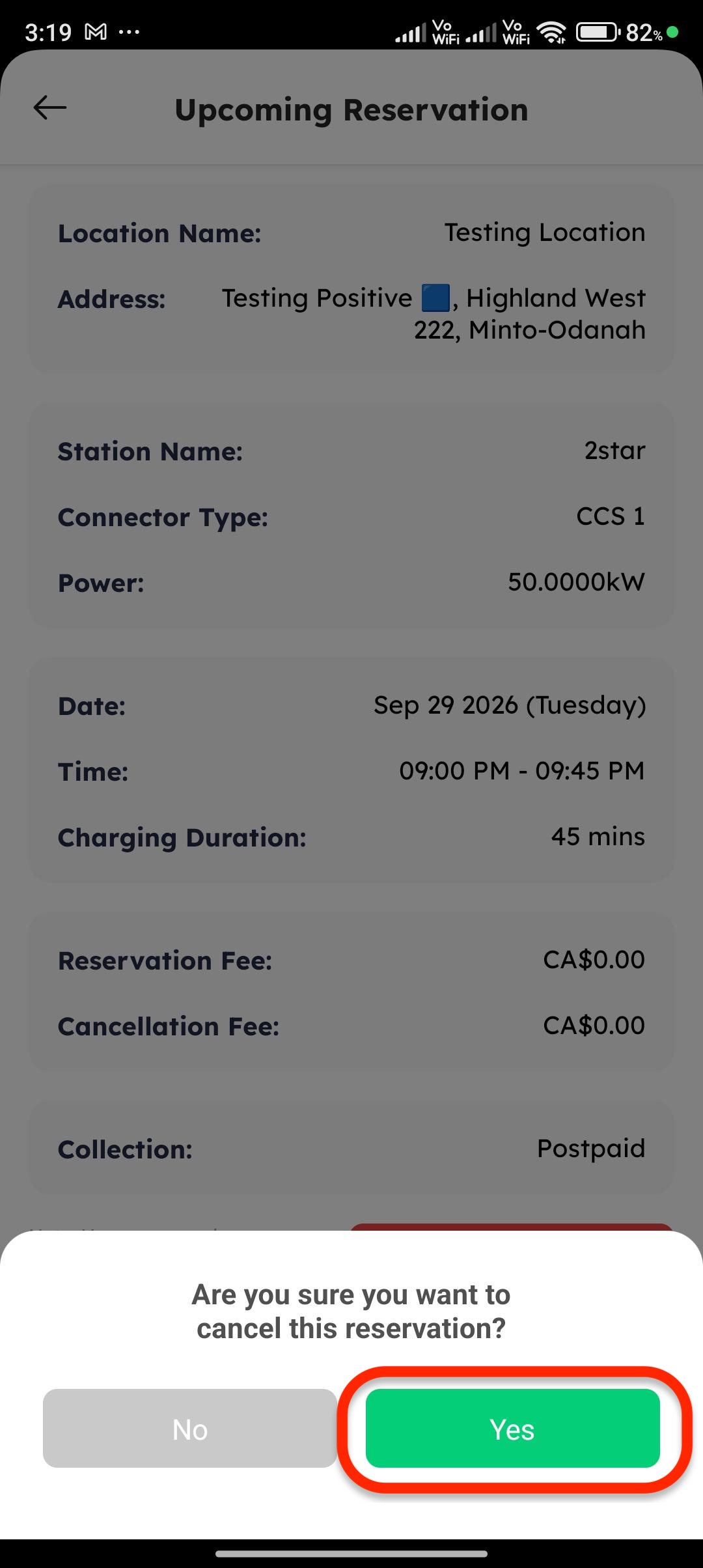
Tap Yes on the confirmation pop-up prompt.
-
Once confirmed, the reservation is immediately canceled and marked as Cancelled.