Exploring the App
You can explore the HIEV Canada mobile app without creating an account or logging in.
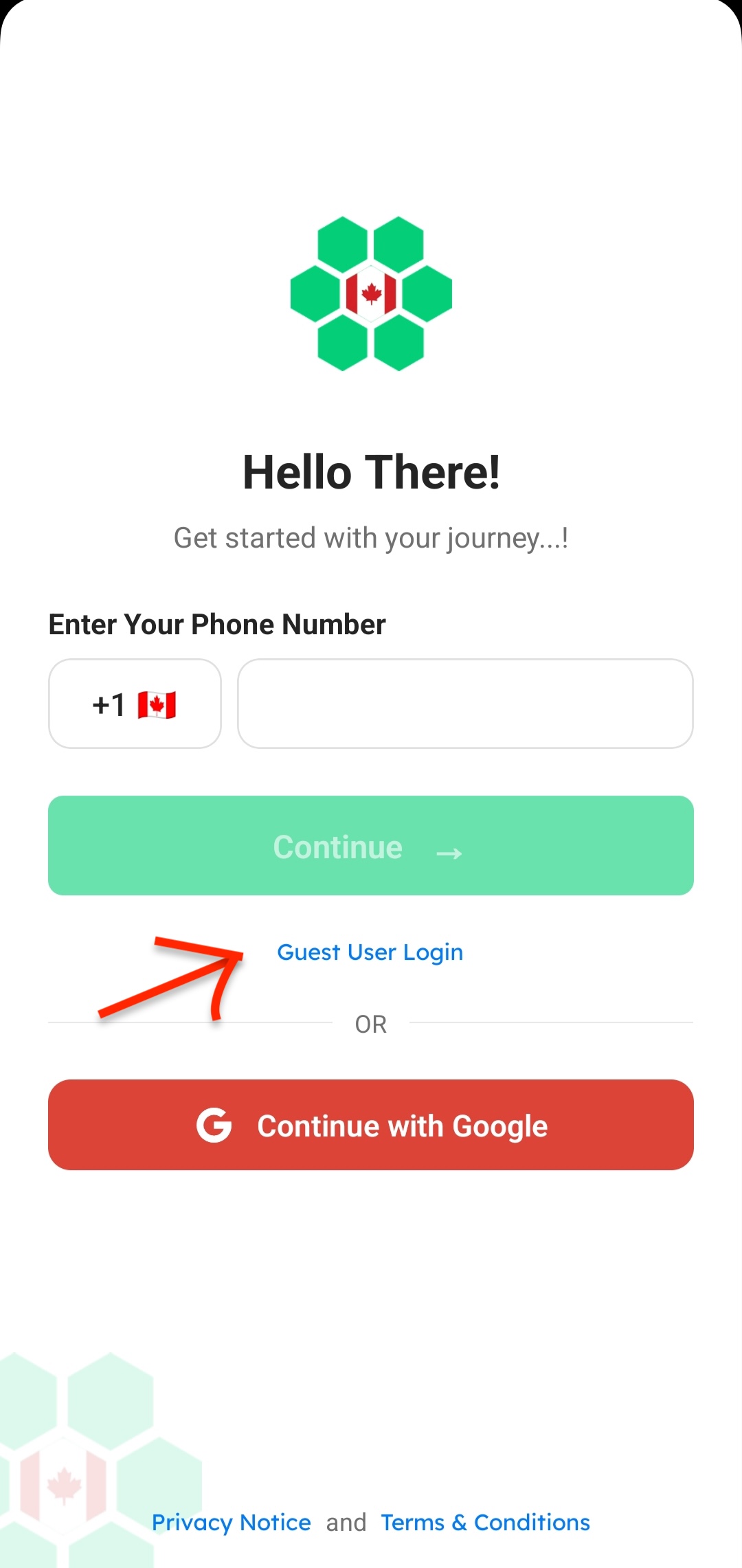
To do so, open the application and tap on Guest User Login in the sign-in screen to navigate through the app and get an overview of its functionality.
What You Can Do as a Guest
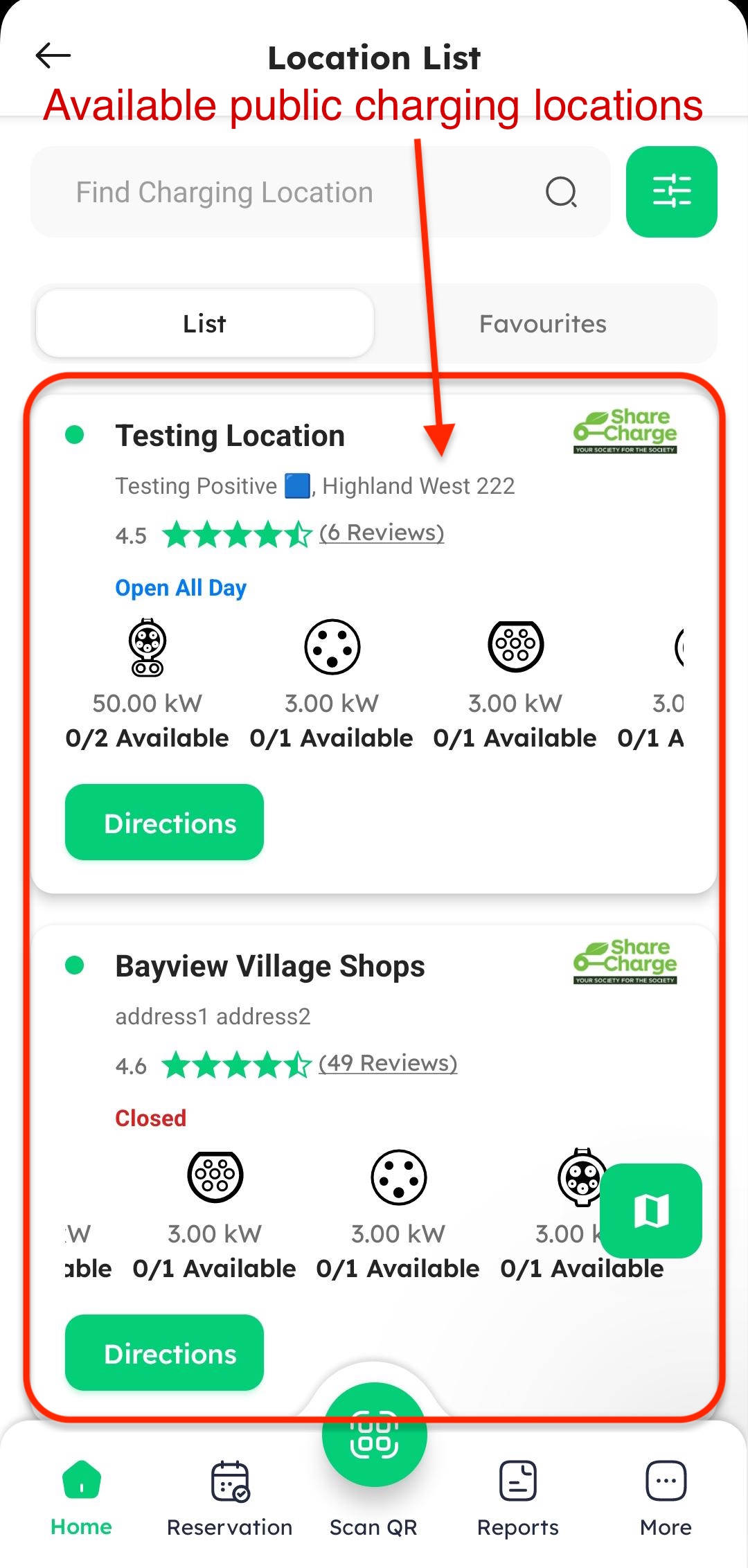
- Browse Charging Locations: View nearby charging stations on the map and check their real-time availability.
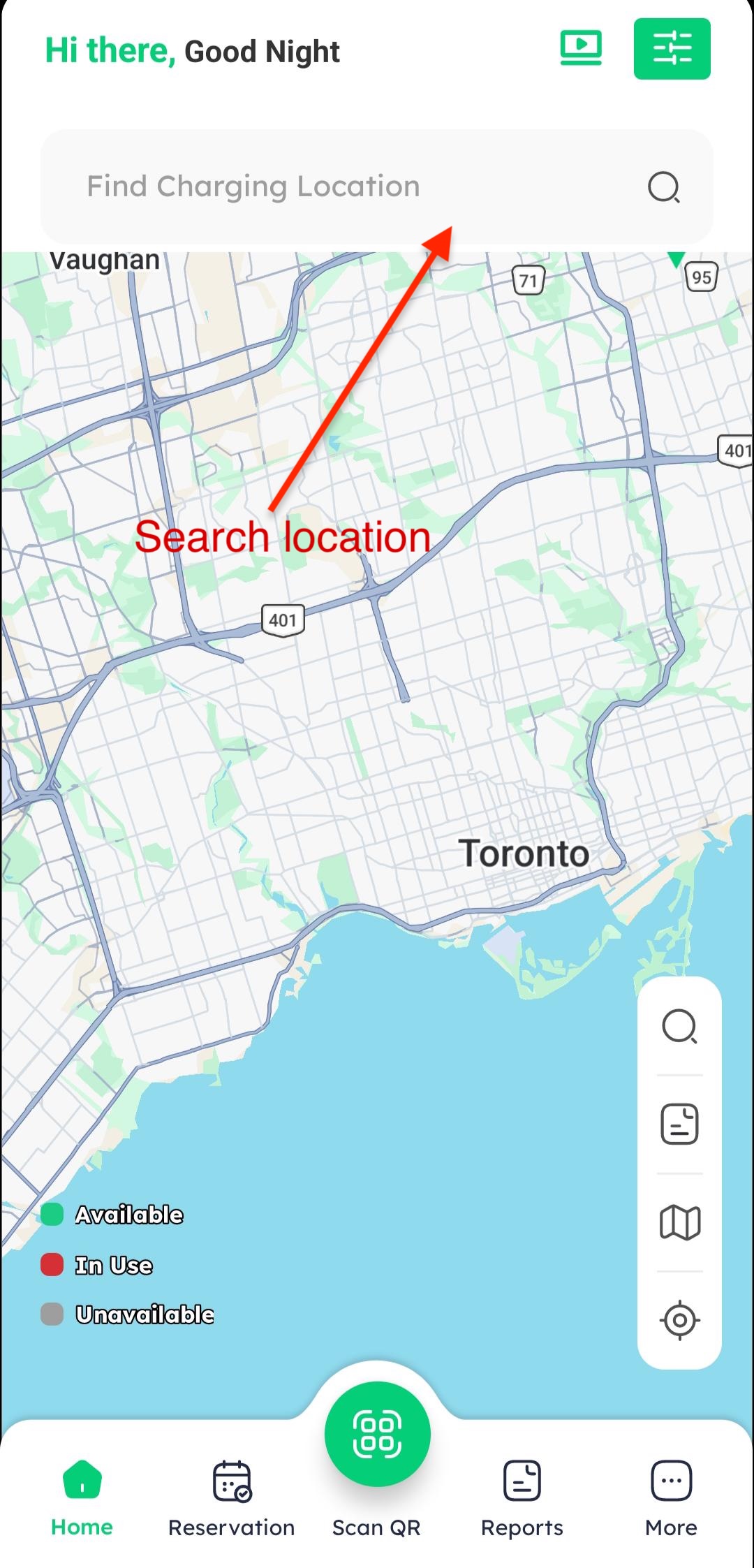
- Explore the App Interface: Get familiar with the layout, interactive features, and overall app navigation.
- Check Pricing and Station Details: View charging tariffs, station locations, supported connector types, and available amenities.
- View Public Charging Sessions: Monitor real-time usage data and active session info for public stations.
Guest Filter Options
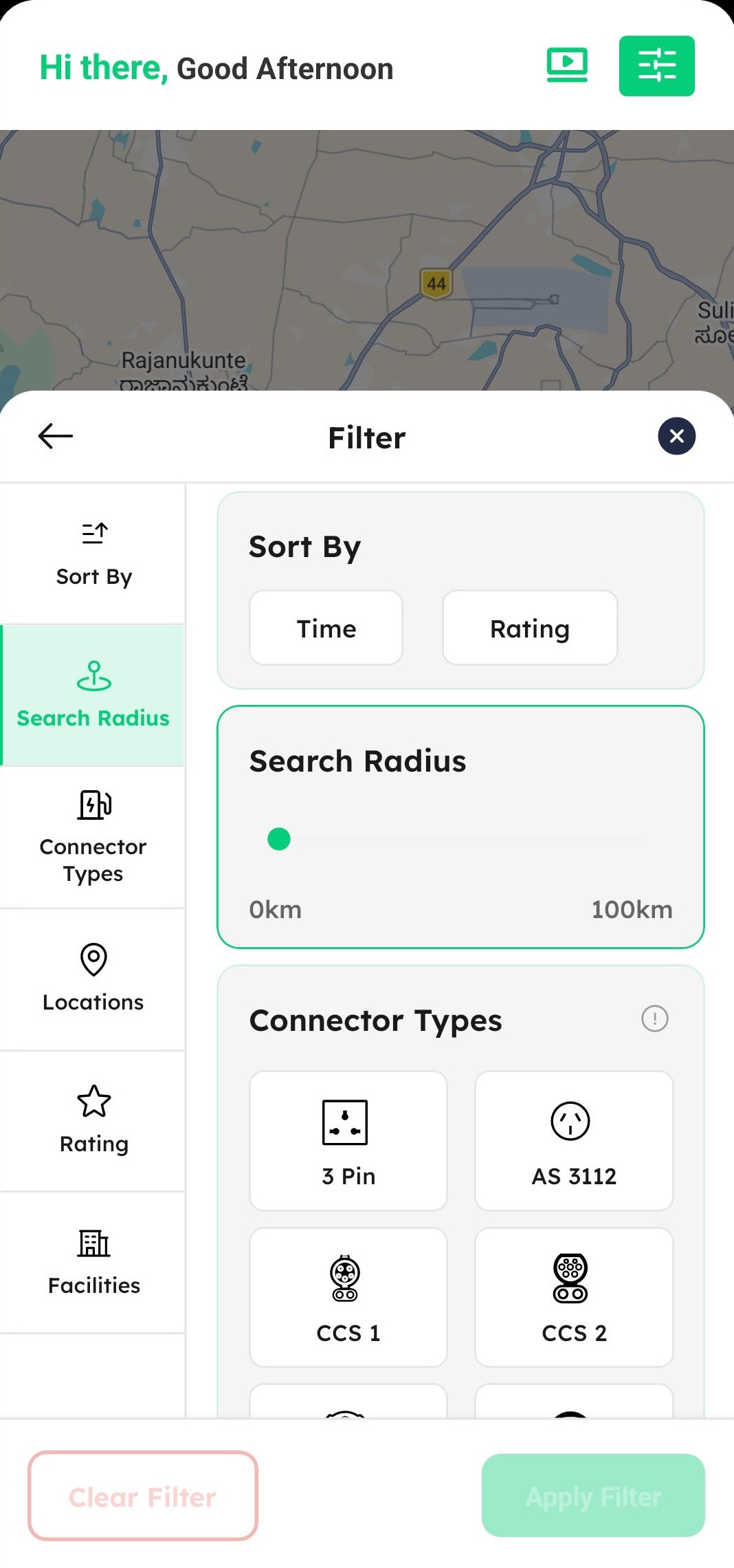
When viewing the map in Guest Mode, tap the Filter icon to narrow down available charging stations using the following parameters:
| Filter Option | Description |
|---|---|
| Sort By | Sort charging locations based on criteria such as Time or Rating. |
| Search Radius | Set a maximum search distance using an interactive distance slider. |
| Connector Type | Filter by compatible plug types (e.g., CCS1, CHAdeMO, J1772, Tesla / NACS). |
| Location Availability | Toggle options to display Available Now, Free of Cost, or Reservable stations. |
| Ratings | Filter charging stations based on user ratings. |
| Facilities | Select nearby amenities and facilities available at the station location. |
Scanning QR in Guest Mode vs. Station Guest Charging
1. In-App QR Scanner (Sign-In Required)
If you tap the Scan QR icon while exploring the app in Guest Mode, the application will prompt you to Sign In or Create an Account before scanning.
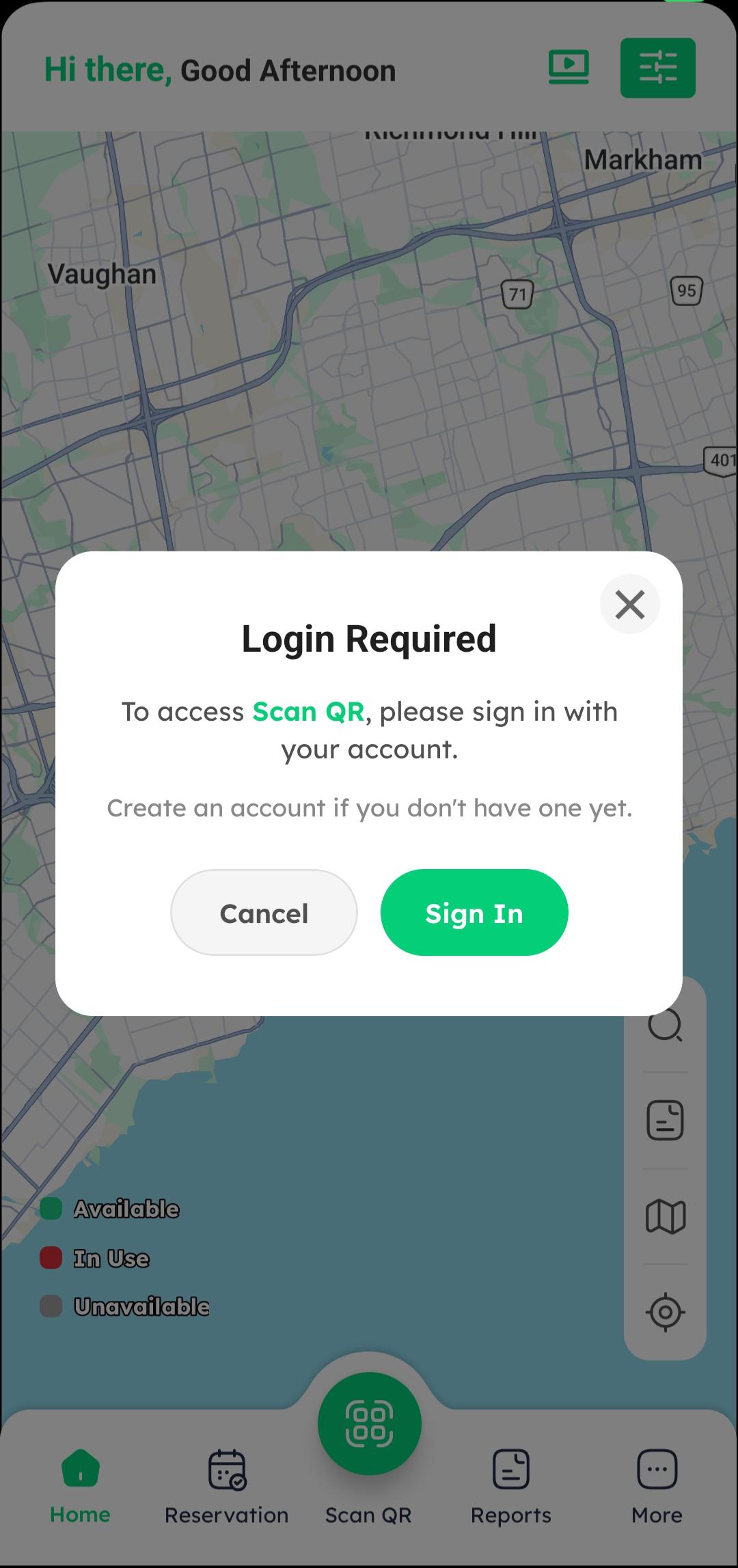
Note: The in-app QR scanner is linked to user account features (such as eWallet balance, saved payment methods, and account charging history).
2. How to Start a Guest Charging Session Directly
If you want to charge your vehicle without creating an account or logging in:
-
Locate the physical Guest QR Code on the charging station.
-
Open your smartphone's native Camera app or Google Lens.
-
Scan the Guest QR Code and tap the link to open the Guest Charging web page (
uat.hiev.network).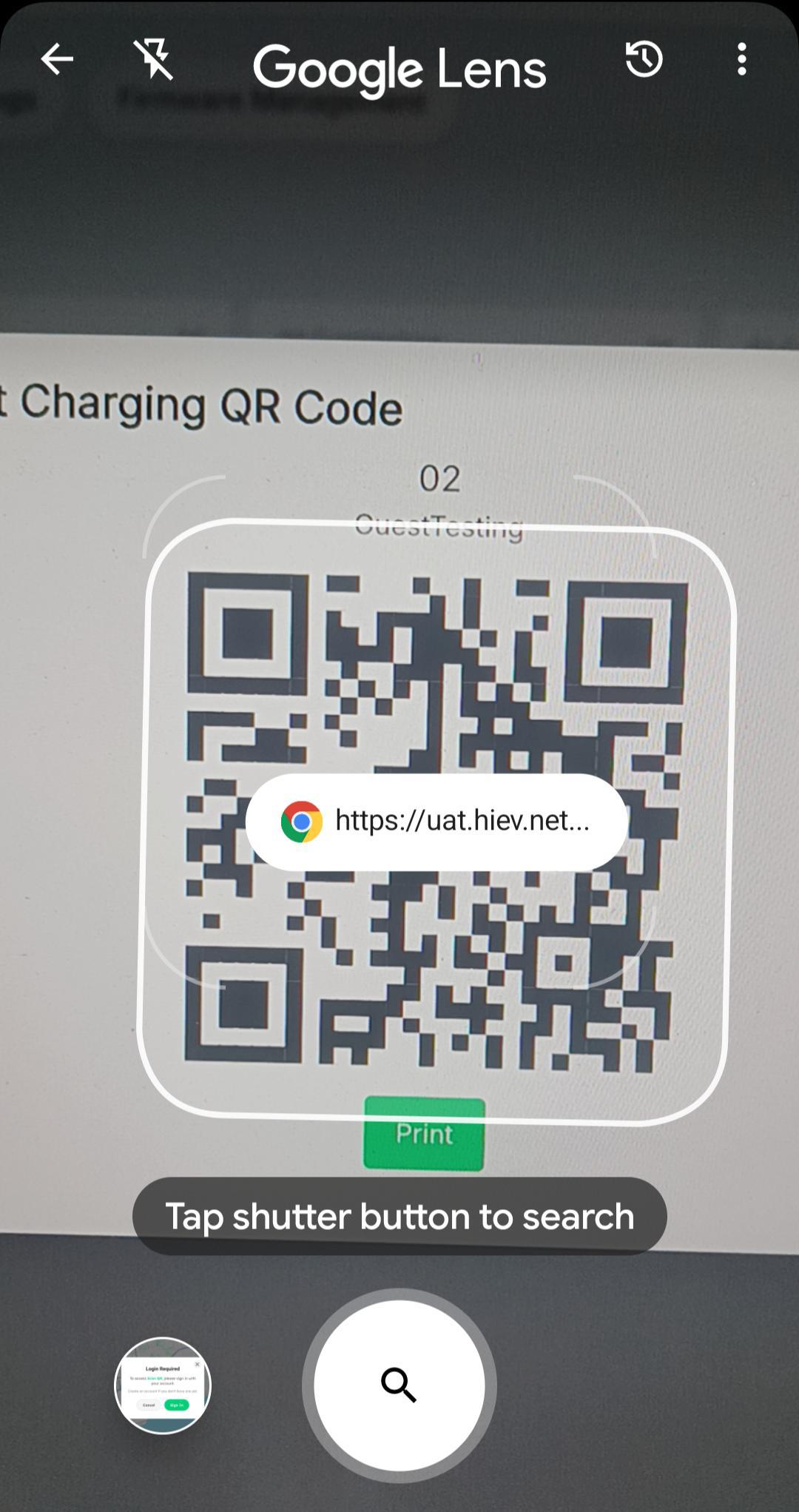
-
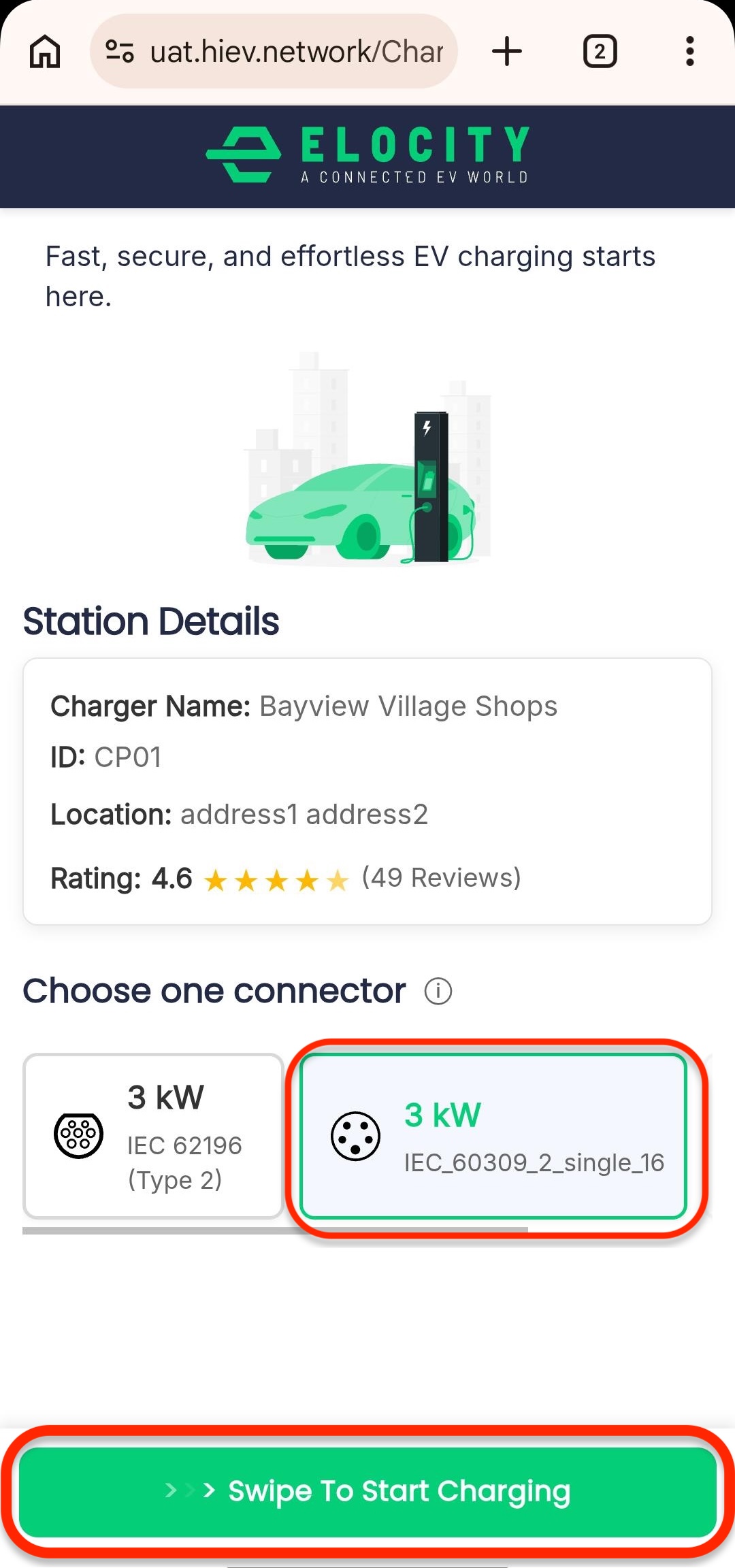
On the Welcome to Guest Charging page:
- Verify the Station Details (Charger Name, ID, Location, and Rating).
- Under Choose one connector, tap to select the compatible connector plugged into your vehicle.
- Slide the green
>>> Swipe To Start Chargingbar at the bottom.
-
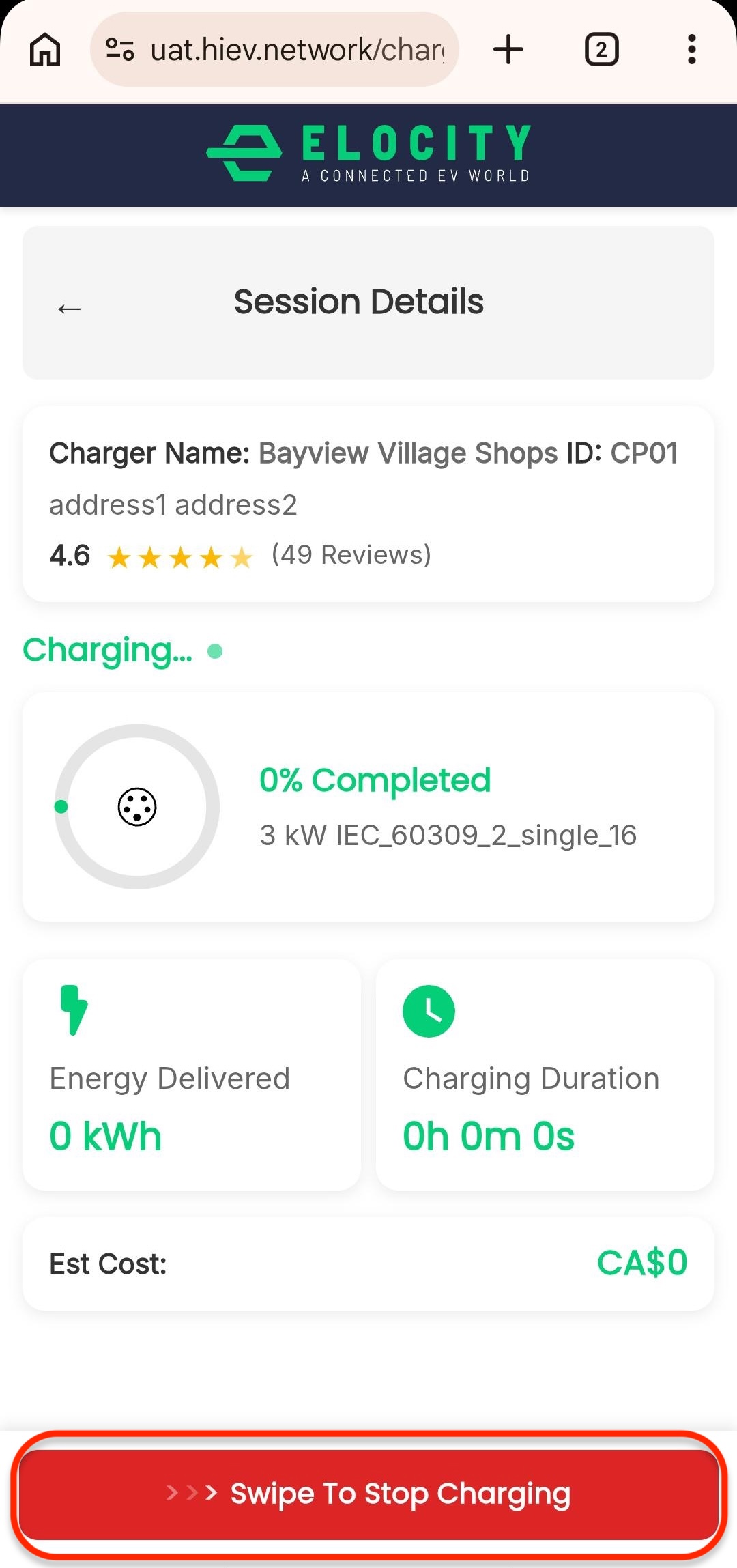
Monitor Live Charging:
- The Session Details screen displays live charging telemetry, including Percentage Completed, Energy Delivered (kWh), Charging Duration, and Estimated Cost.
- To complete your session, slide the red
>>> Swipe To Stop Chargingbar.
-
Payment Processing & Receipt:
- The screen will briefly show Payment Processing along with your Total Energy Used and Total Duration.
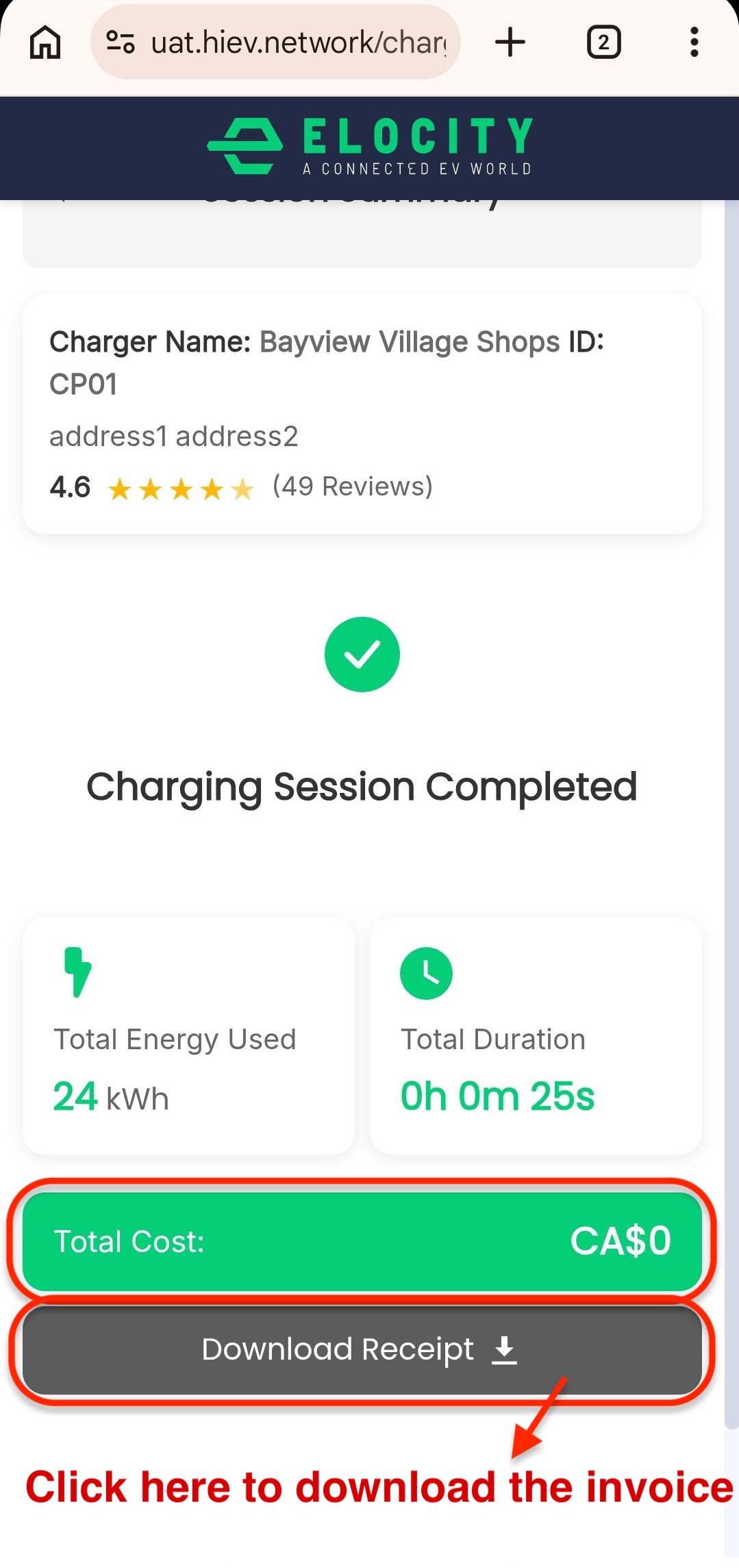
- Once finalized, the Charging Session Completed screen displays the Total Cost.
- Tap Download Receipt to download an official copy of your charging receipt.
Guest mode allows you to view map details, search, and apply filters, but certain actions—such as initiating a charging session, reserving a connector, managing your eWallet, or viewing charging history—require an account.
To access full functionality,including starting a charging session and managing your EV profile, sign up for an account or sign in.